

Notifications
Sqiya warns you when something needs your attention: critical moisture, valve opened automatically, box alarm, overdue invoice… You find these messages in the app, and you choose how to receive them.
Read your notifications
- On the dashboard, tap the bell, at the top right. The red badge shows the number of unread notifications.
- The Notifications screen opens, with the most recent at the top.
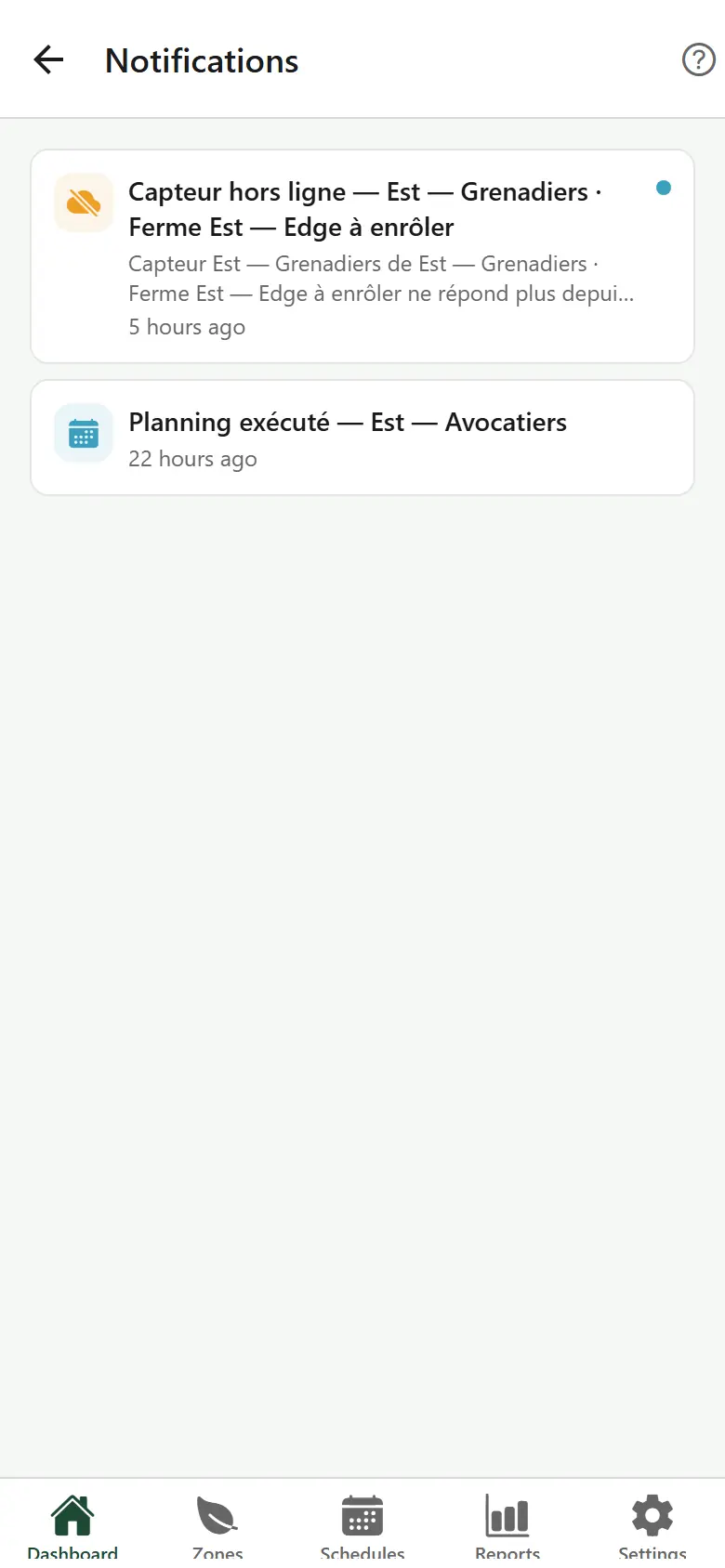
Each notification shows an icon, a title, a short description and how long ago it was received (for example "2h ago"). A colored dot on the right marks an unread notification.
- Tap a notification to mark it as read.
- If it is about a zone, the app opens the details of that zone directly.
Pull the list down to refresh it. If there is nothing, the app shows No notifications yet.
TIP
The last 5 notifications also appear on the dashboard, in Recent alerts. Tap See all to open the full list.
Several farms
The list shows the notifications of the farm displayed and those of your account (invoices, subscription). With All farms, it shows everything.
Live alerts
When the app is open, an important alert also appears in a banner at the top of the screen, with the name of the zone. Tap the cross to close it.
If notifications are allowed on your phone, you also receive them when the app is closed. Tapping a notification opens the app on the zone concerned.
Choose your notifications
- Tap the Settings tab.
- In the Notifications section, tap Notifications.
- Turn each type of notification on or off:
- Critical humidity;
- Valve opened automatically;
- Overdue invoice.
- Under Preferred channel, choose how to receive them: WhatsApp, Push notification or Email.
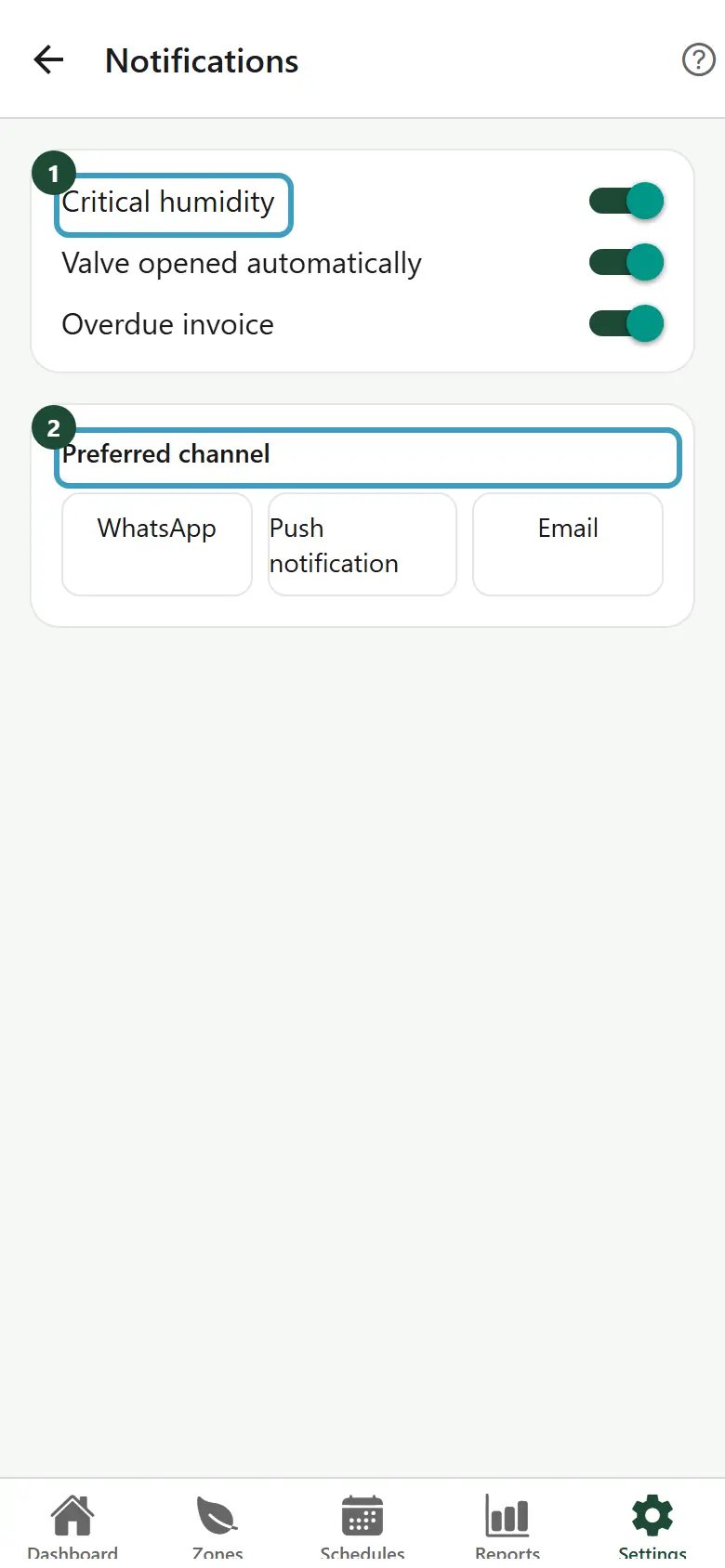
Each change is saved right away: the message Saved appears.
Depending on your plan
WhatsApp alerts are part of the Daki and Kbir plans.