

My invoices
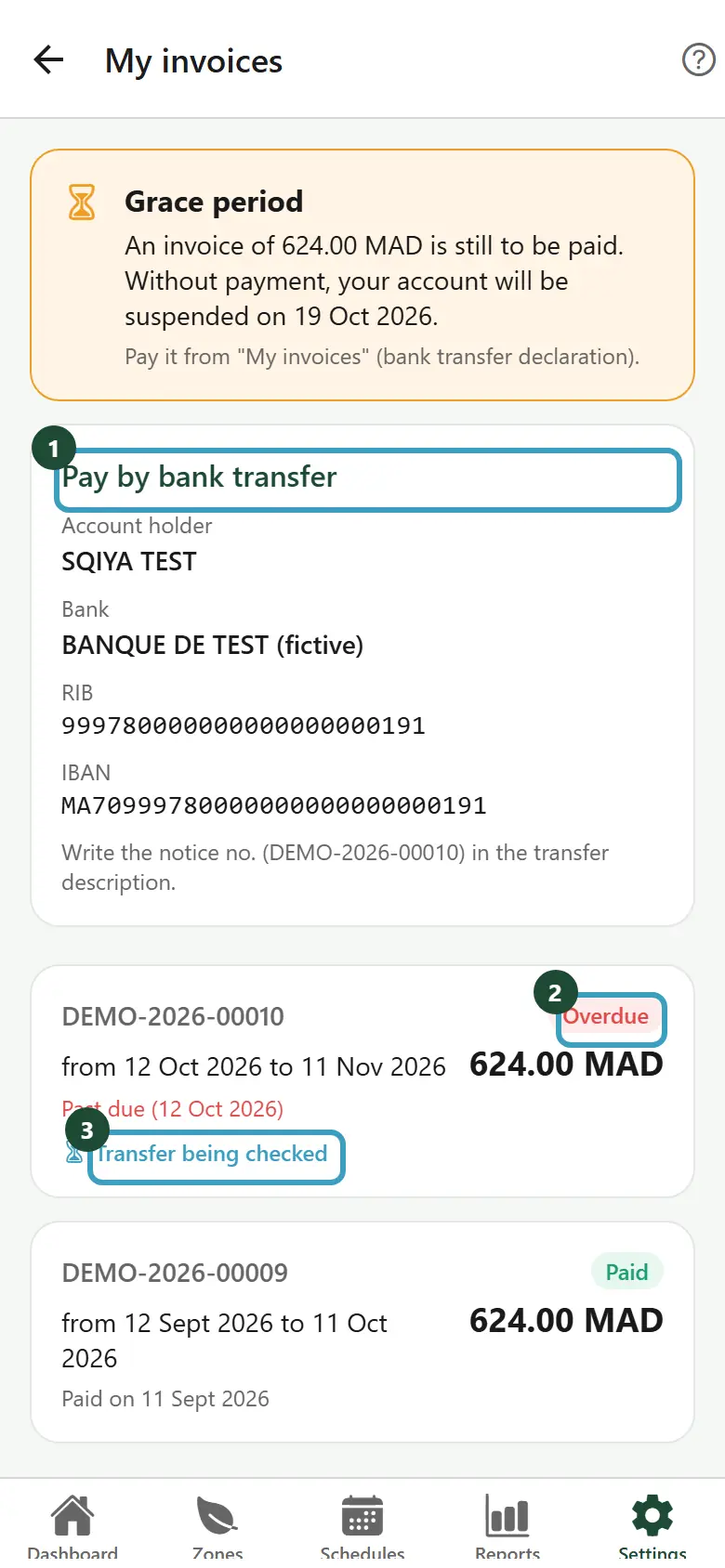
The My invoices screen lists the invoices for your Sqiya subscription and your other invoices (equipment, installation, services). You will find Sqiya's bank details (RIB) there, and you can declare a payment by bank transfer.
Open your invoices
- Tap the Settings tab.
- In the My subscription section, tap My invoices.
Depending on your role
Only the people in charge of the account see the invoices. Other members see the message Only an account manager can view and pay invoices. Contact them, or the Sqiya team.
Read the list
At the top, the Pay by bank transfer card shows Sqiya's bank details (see Pay by bank transfer).
Each invoice shows its number, its period, its amount and its status:
| Status | Meaning |
|---|---|
| To pay | The invoice has been issued. The due date is shown: To pay by … |
| Overdue | The due date has passed: Past due … |
| Partially paid | Part of it has been received, some is still to pay: Paid: … — still to pay: …. The due date applies to the rest. |
| Paid | The payment has been received: Paid on … |
| Cancelled | The invoice is no longer due. |
| To refund / Settled | A credit note: an amount Sqiya owes you, to be refunded or already settled. |
Two labels can follow:
- Transfer being checked: you declared a transfer, and the Sqiya team is checking it;
- Transfer rejected — declare again: the transfer was not accepted. Open the invoice to read the reason.
Pull the list down to refresh it.
See the details of an invoice
Tap an invoice. The details screen shows:
- the number, the status and the amount;
- the Period, the Plan and the Area billed in hectares (for the subscription);
- the Due date, or the payment date;
- Subscription price, if you have a discount: List price, each discount, then Subscription net;
- Details, for an equipment and services invoice: each line with its quantity and price;
- Already paid and Left to pay, if part of it is already paid or if a credit note reduces the invoice;
- My transfer declarations: the transfers you declared for this invoice, with their status (Being checked, Validated or Rejected with the reason).
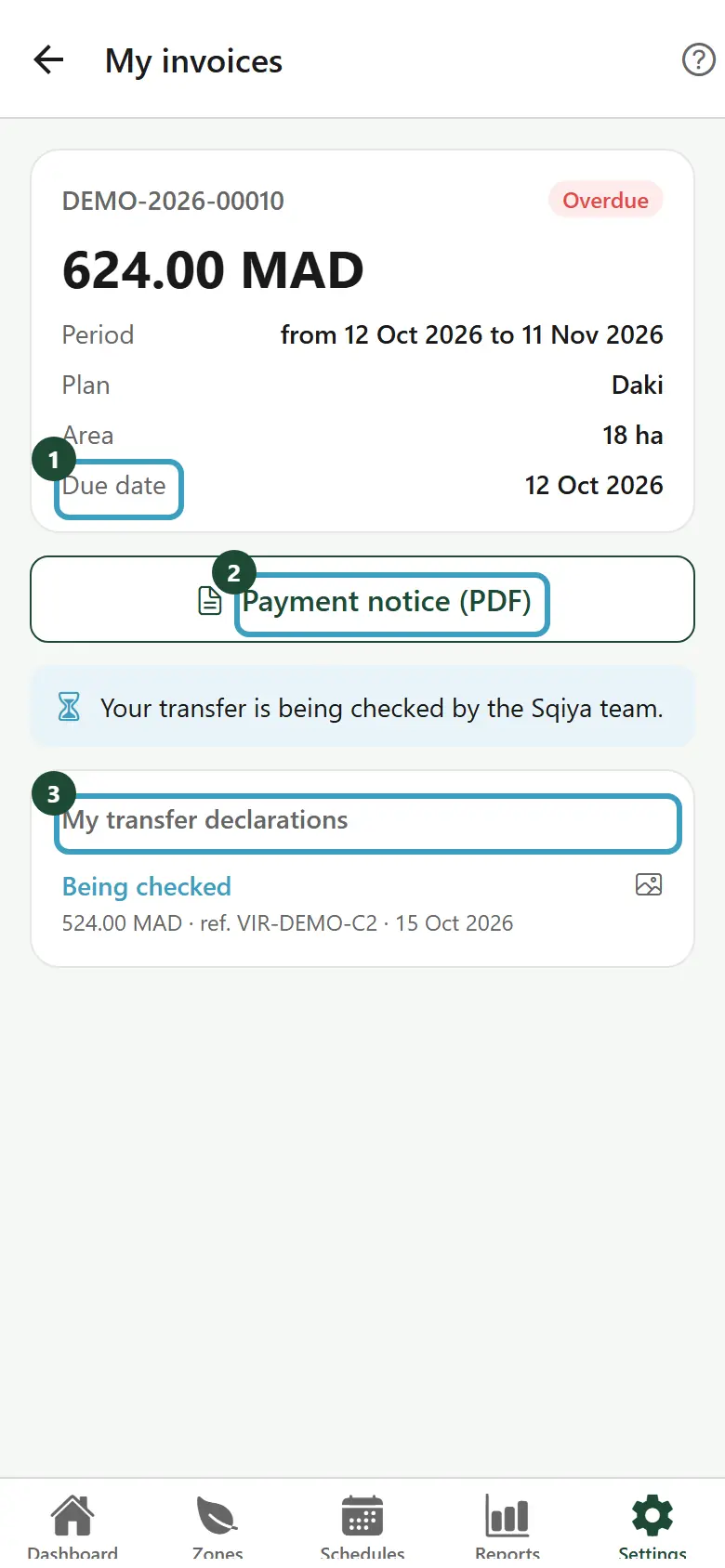
Download the payment notice (PDF)
- In the invoice details, tap Payment notice (PDF).
- The document opens. You can save it or share it from your phone.
For a credit note, the button is called Credit note (PDF). If the document does not open, the app shows Unable to open the payment notice.
Declare a bank transfer
After paying by bank transfer, let Sqiya know from the app. This speeds up the check.
- Make the transfer from your bank, with the invoice's notice number in the transfer description.
- In the invoice details, tap I paid by bank transfer.
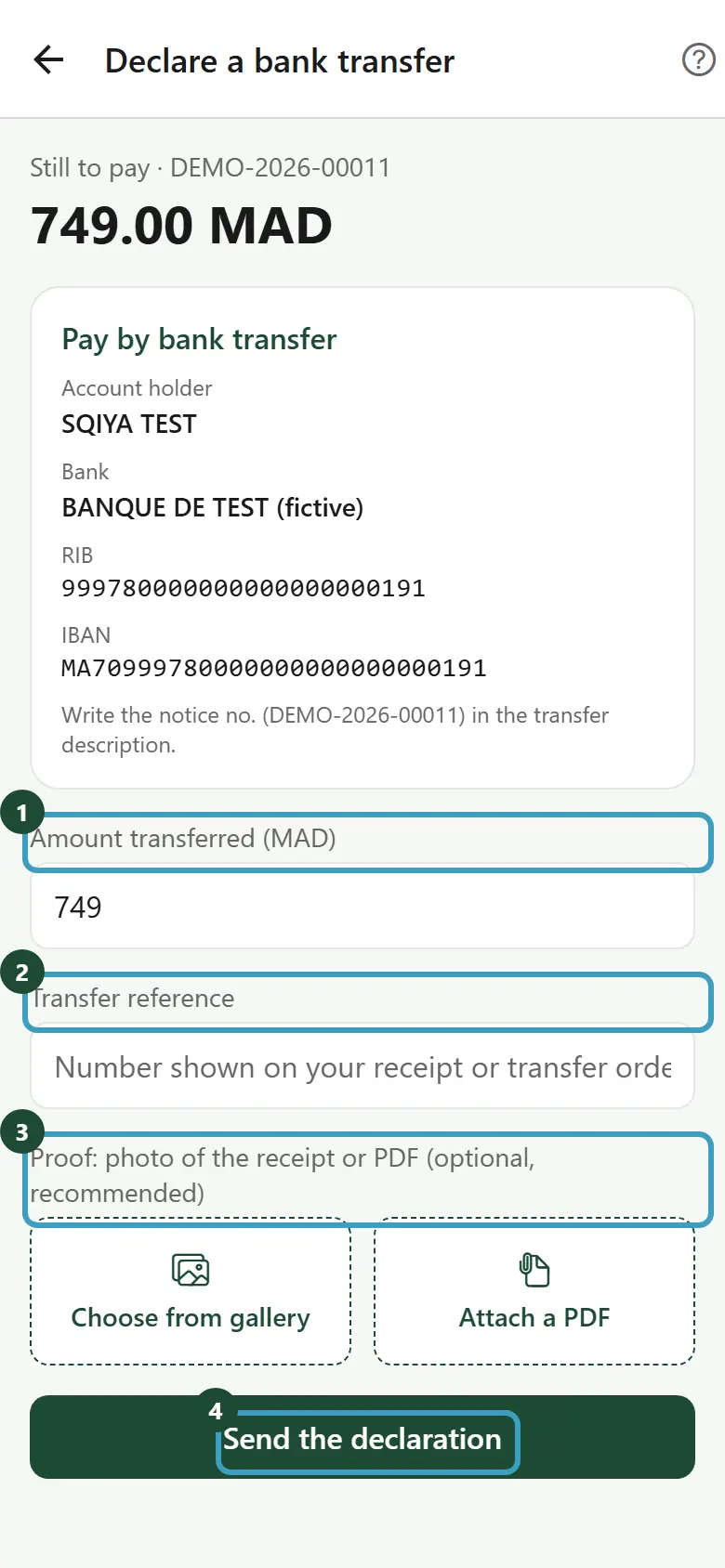
- The Declare a bank transfer screen opens. It shows the Still to pay amount and Sqiya's bank details.
- Check the Amount transferred (MAD). It is already filled in with the amount left to pay: correct it if you transferred a different sum.
- In Transfer reference, enter the number shown on your receipt or your transfer order.
- Under Proof: photo of the receipt or PDF (optional, recommended), tap Take a photo, Choose from gallery or Attach a PDF (for example the transfer notice downloaded from your bank).
- Tap Send the declaration.
- The message Declaration sent: the Sqiya team will check your transfer. appears.
The proof
- A photo in JPG or PNG format, or a PDF, of 5 MB at most.
- To change it, tap Remove the proof, then choose another one.
- If the app asks for access to the camera or your photos, allow it in your phone's settings.
Different amount
If the amount you enter does not match the amount left to pay, the app warns you: The amount differs from the amount still to pay (…). You can still send it: the Sqiya team will check. A lower amount only pays part of the invoice.
Pay in several instalments
If you transfer less than the amount left to pay, the Sqiya team records this payment: the invoice becomes Partially paid, never Paid as long as an amount is still due. You receive a message with what is left to pay.
- Make another transfer for the rest.
- Declare it in the same way: the amount suggested is already the amount left to pay.
- Once this transfer is validated, the invoice becomes Paid.
The due date and the grace period apply to the amount left to pay.
While a transfer is being checked, the I paid by bank transfer button disappears and the message Your transfer is being checked by the Sqiya team. appears. If the transfer is rejected, the reason appears in My transfer declarations and you can declare a new one.
Error messages
| Message | What to do |
|---|---|
| Enter the amount transferred. | Enter an amount greater than zero. |
| Enter the transfer reference. | Enter the reference of your receipt. |
| A transfer is already being checked for this invoice. | Wait for the Sqiya team's answer. |
| The proof is too large (5 MB max). | Take the photo again or choose a smaller file. |
| Format not accepted: JPG or PNG photo, or PDF. | Attach a photo or a PDF. |
| Sending failed. Check your connection and try again. | Check the network, then tap Send the declaration again. |
Account awaiting payment or suspended
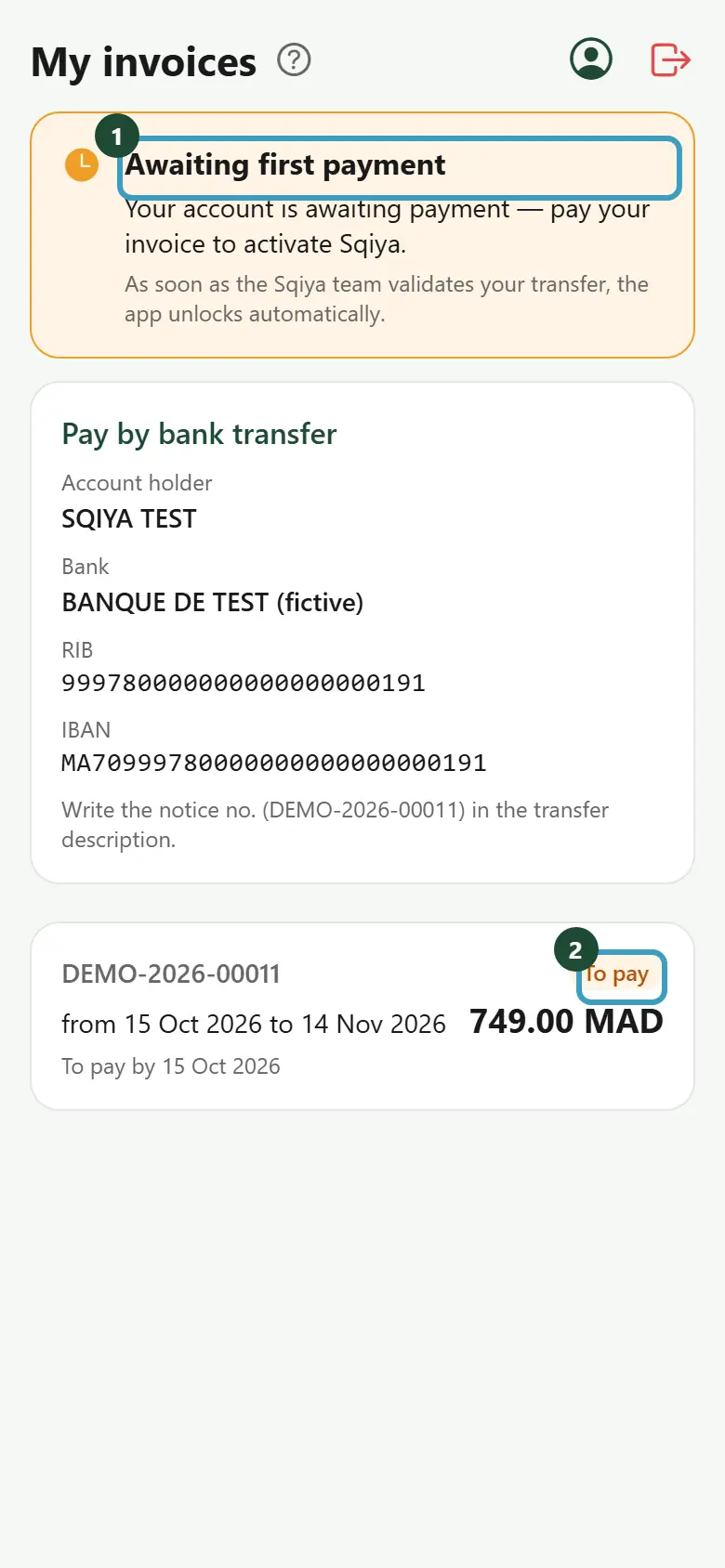
If your farm's subscription is not paid, the app only shows My invoices. A banner explains why:
- Awaiting first payment: Your account is awaiting payment — pay your invoice to activate Sqiya.
- Subscription suspended: Your subscription is suspended — pay your invoice to reactivate Sqiya.
In this mode:
- Open the invoice to pay and pay it by bank transfer.
- Declare your transfer as explained above.
- Wait for the validation: As soon as the Sqiya team validates your transfer, the app unlocks automatically. You have nothing to do, not even restart the app.
At the top right, two icons remain available: your profile (My profile) and sign-out (Log out).
WARNING
During the suspension, the app no longer lets you monitor or control your zones. To know when a suspension is coming and how to avoid it, read Payment and due dates.