

Payment and due dates
The Sqiya subscription is paid in advance, month by month. This page explains when invoices arrive, what happens if you are late and how to pay by bank transfer.
The calendar of a month
The subscription follows an anniversary date: the date of your first validated payment.
| When | What happens |
|---|---|
| 5 days before the end of the paid month | The invoice for the next month is issued. You receive a notice. It appears as To pay in My invoices. |
| End of the paid month | This is the Due date. If the invoice is not paid, it becomes Overdue and you receive a notification with the planned suspension date. |
| Grace period | The app keeps working normally for a few days: 7 days, unless a different agreement was made with Sqiya. The Grace period banner on the dashboard and in My invoices reminds you of the amount left and the suspension date. |
| 3 days and 1 day before the end of the grace period | You receive a reminder. |
| End of the grace period | The account is suspended. |
Receive the reminders
Leave Overdue invoice turned on in Settings › Notifications (see Notifications).
The suspended account
When the account is suspended, your whole team only sees the My invoices screen, with the Subscription suspended banner: Your subscription is suspended — pay your invoice to reactivate Sqiya.
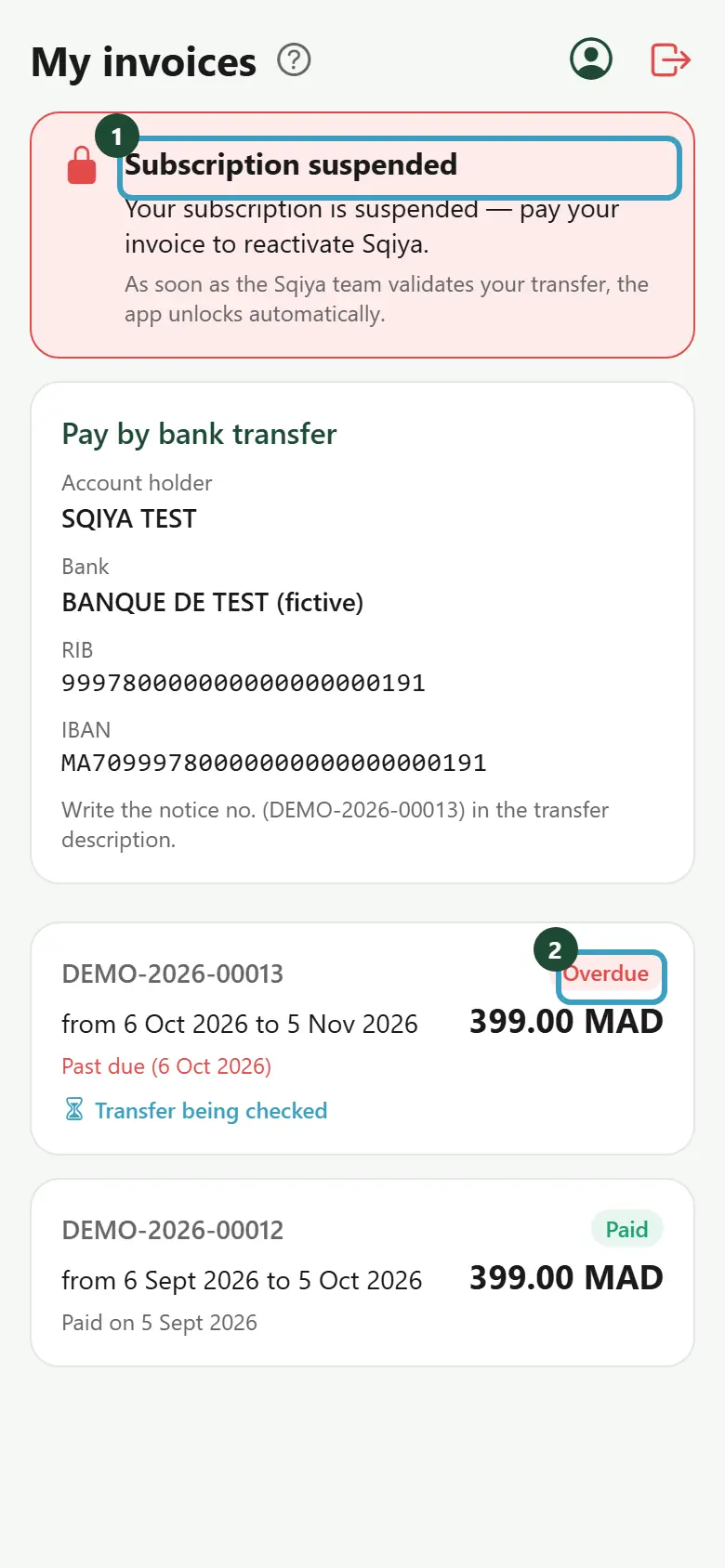
Zones, valves, schedules and reports are no longer available in the app. Your profile and sign-out remain available.
The first payment
A new account starts as Awaiting first payment: the app only shows My invoices with the first invoice. It opens fully as soon as this payment is validated.
Reactivation
- Pay the Overdue invoice by bank transfer.
- Declare the transfer in the app (see below).
- The Sqiya team checks and validates the transfer.
- The account is reactivated right away: As soon as the Sqiya team validates your transfer, the app unlocks automatically. The app updates on its own, in less than a minute, without a restart.
New anniversary date
After a suspension or a first payment, the new month starts on the day the payment is validated. This date becomes your new anniversary date.
Pay by bank transfer
Sqiya's bank details are shown in the app, in the Pay by bank transfer card:
- at the top of My invoices;
- in the details of an invoice to pay;
- on the Declare a bank transfer screen.
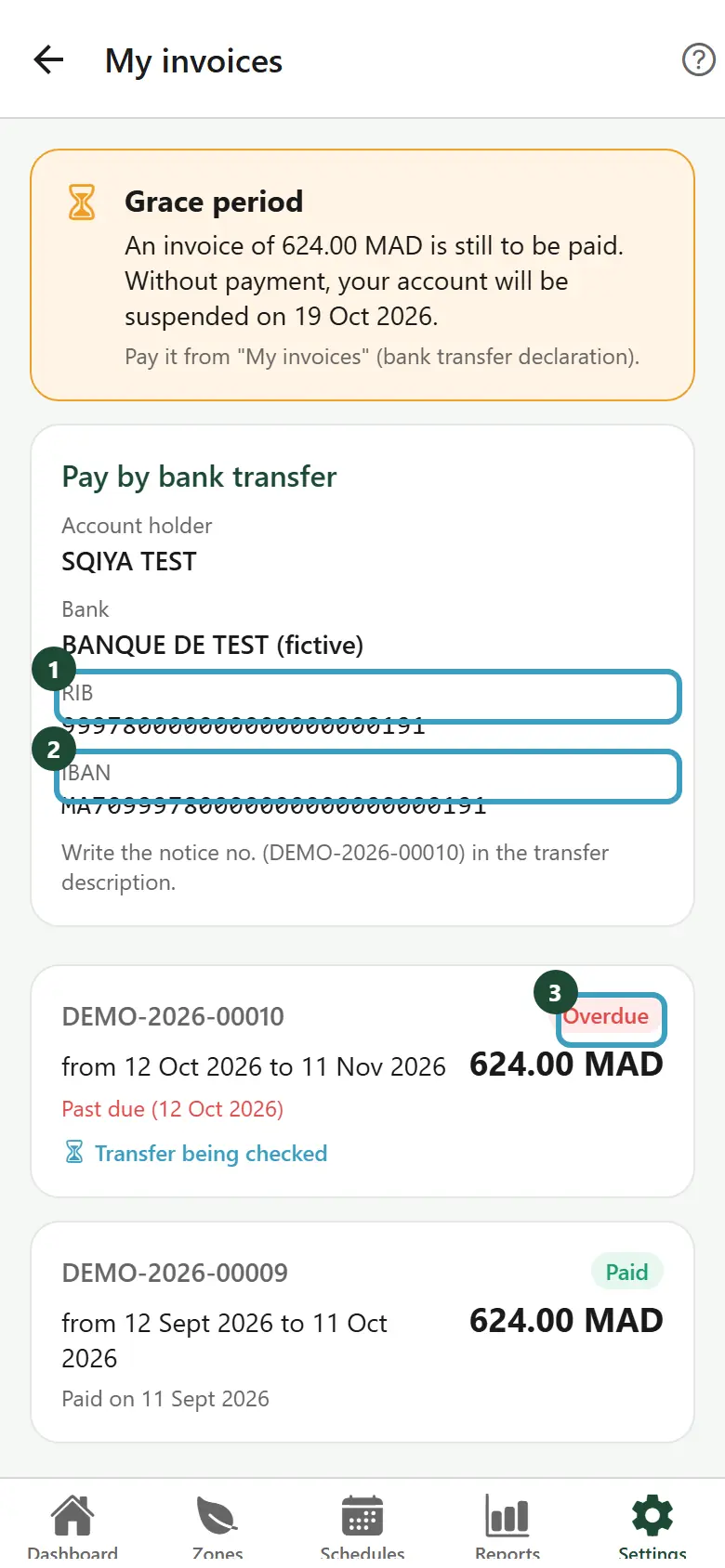
The card shows the Account holder, the Bank, the RIB and the IBAN.
- Press and hold the RIB or the IBAN to copy it.
- Make the transfer from your bank.
- In the transfer description, write the invoice's notice number, as the card reminds you: Write the notice no. (…) in the transfer description.
- In the app, open the invoice and tap I paid by bank transfer.
- Fill in the amount and the reference, add the proof (photo of the receipt or PDF), then tap Send the declaration.
The details of the declaration are explained in My invoices.
WARNING
- If the card shows Bank details coming soon: contact the Sqiya team., ask the Sqiya team for the bank details.
- Declaring your transfer in the app is not enough: it is the validation by the Sqiya team that marks the invoice as Paid. During the check, the invoice shows Transfer being checked.
- To avoid suspension, pay and declare your transfer before the end of the grace period. Allow time for the transfer to arrive and be checked.
- A transfer lower than the amount left to pay only pays part of it: the invoice becomes Partially paid and the account can still be suspended as long as the rest is not paid (see Pay in several instalments).
If a transfer is rejected
The invoice shows Transfer rejected — declare again. In the invoice details, My transfer declarations shows the Reason. Correct what is asked, then declare the transfer again.
Who can pay?
Only members whose role allows them to see the invoices, such as the account owner, see My invoices and can declare a transfer. Other members see: Only an account manager can view and pay invoices. Contact them, or the Sqiya team.