

Watering schedules
A schedule automatically opens a zone's valve at the time and on the days you choose, for a fixed duration. The Schedules tab shows the Irrigation Schedules screen.
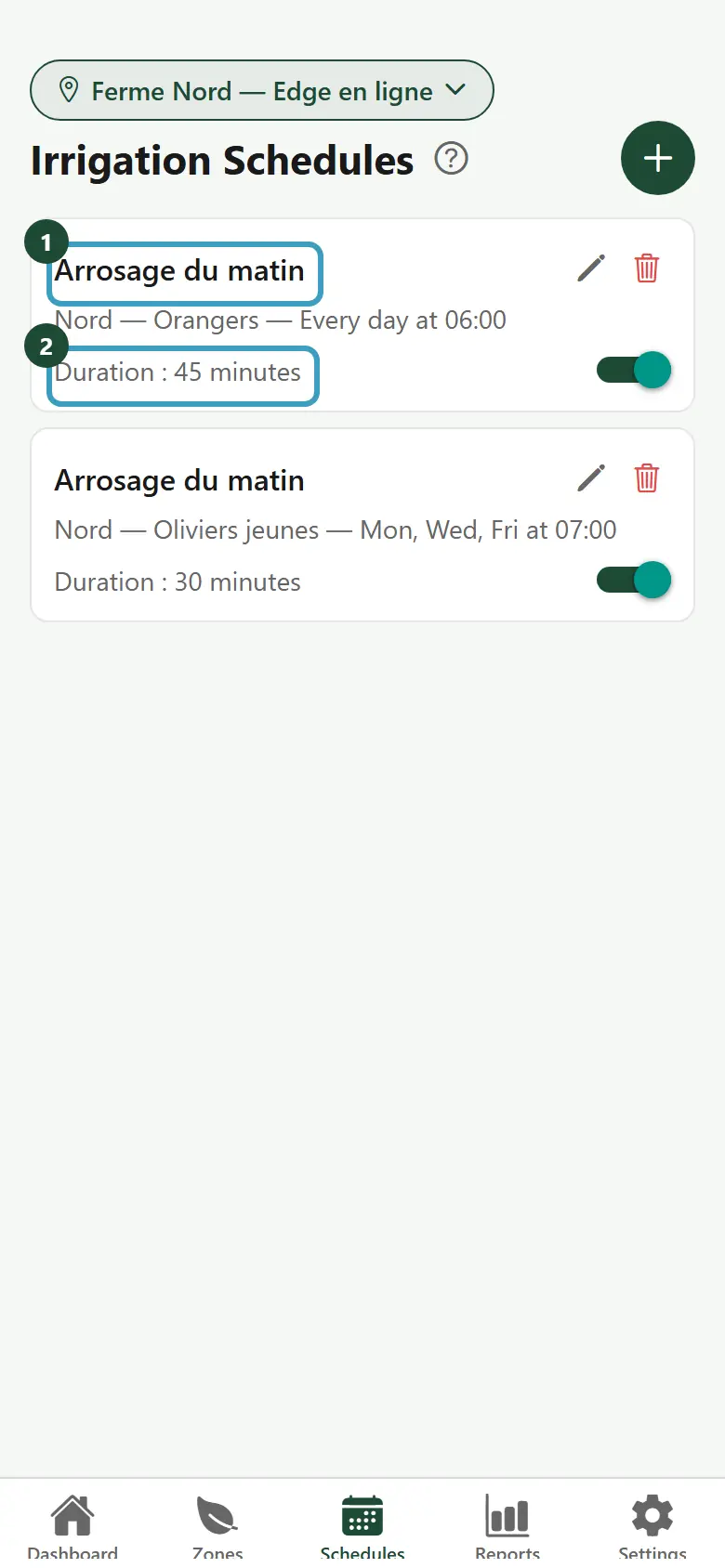
Read the list
For each schedule, the card shows:
- its name, for example "Morning watering". Without a name, the app shows Schedule followed by the zone name;
- the zone and the time, in plain words;
- the Duration in minutes;
- a switch on the right: on, the schedule is active; off, it is paused.
If you have several farms, choose the farm at the top of the screen: the list shows the schedules of that farm.
Create a schedule
- Tap the + button, at the top right.
- The New schedule screen opens.
- In Schedule name, enter a name (optional), for example "Morning irrigation".
- Under Zone, choose the zone to water.
- Under Time, enter the hour in the first box (0 to 23) and the minutes in the second (0 to 59).
- Under Days, tap the days you want: M, T, W, T, F, S, S (Monday to Sunday). Tap a day again to remove it.
- Under Duration (minutes), choose 15, 30, 45, 60, 90 or 120.
- Tap Save.
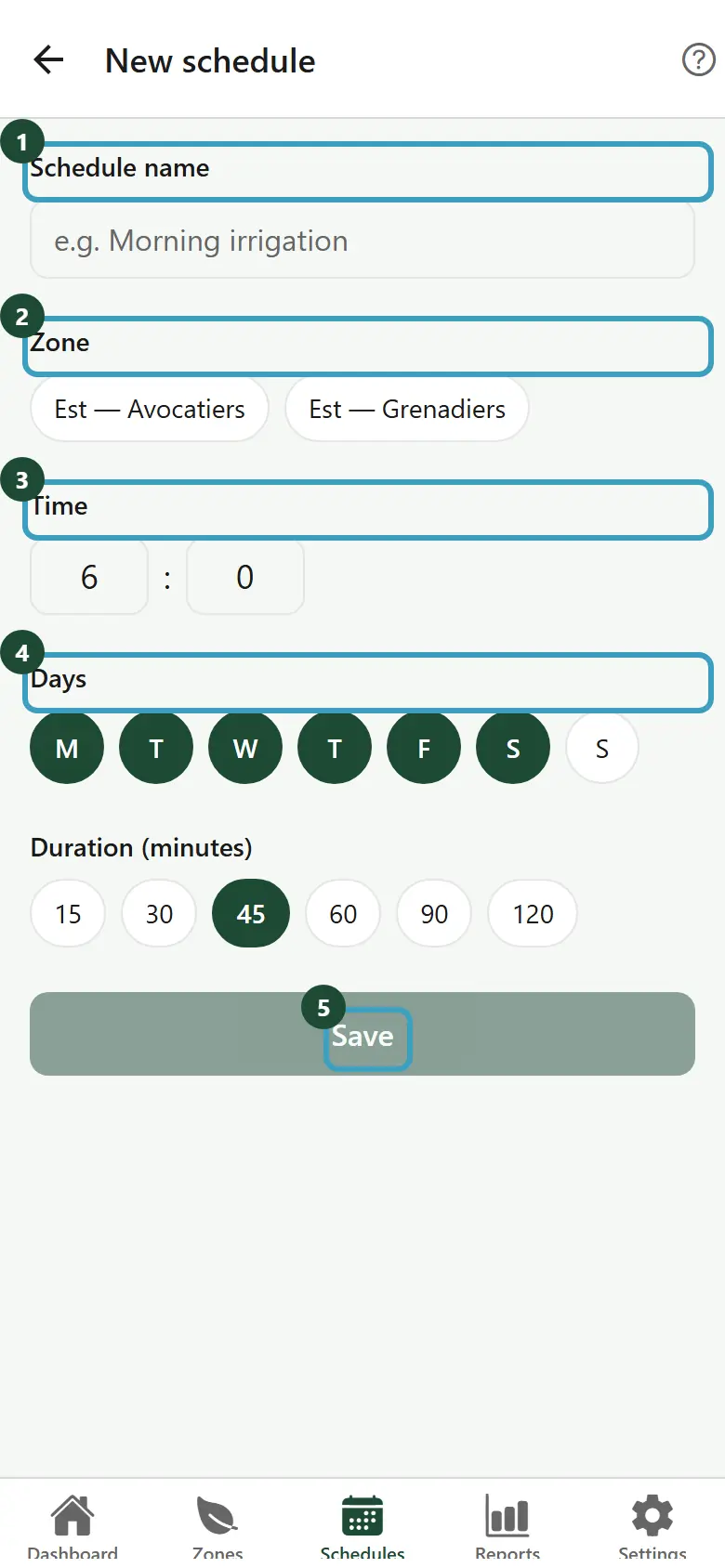
The message Saved confirms the creation. The new schedule is active right away.
TIP
- By default, the app suggests 6:00, Monday to Saturday, for 45 minutes.
- If you select all seven days, or none, the schedule runs Every day.
- The Save button stays greyed out until you choose a zone.
- The zones offered are those of the farm displayed.
Edit a schedule
- On the schedule card, tap the pencil.
- The Edit schedule screen opens, already filled in.
- Change what you want.
- Tap Save.
Pause a schedule
- Tap the card's switch to turn it off.
- The schedule no longer runs, but it is kept.
- Tap the switch again to turn it back on.
Delete a schedule
- On the card, tap the red bin. You can also swipe the card to the left, then tap the bin.
- The Delete this schedule? window warns you: This action cannot be undone.
- Tap Confirm, or Cancel.
- The message Deleted appears.
Depending on your plan and your role
- If your plan does not include schedules, the + button does not appear. A banner at the bottom of the screen explains why, with the See plans → link. Schedules already created remain visible.
- The number of schedules may be limited depending on your plan. The details are on the plans screen.
- The pencil, the switch and the bin only appear if your role allows you to edit or delete schedules.