

Check the installation
The check is done in the farmer's Sqiya app, on their phone, with their account. It is the only way to check what the farmer will really see.
TIP
To test a valve, the account used must be allowed to control the valves. Without this right, the irrigation button does not appear. See Team.
1. The box is online
- Open the app and go to Dashboard.
- Look for the Sqiya box card at the top of the screen.
- Check that it shows online, with synced just now or last sync a few minutes ago.
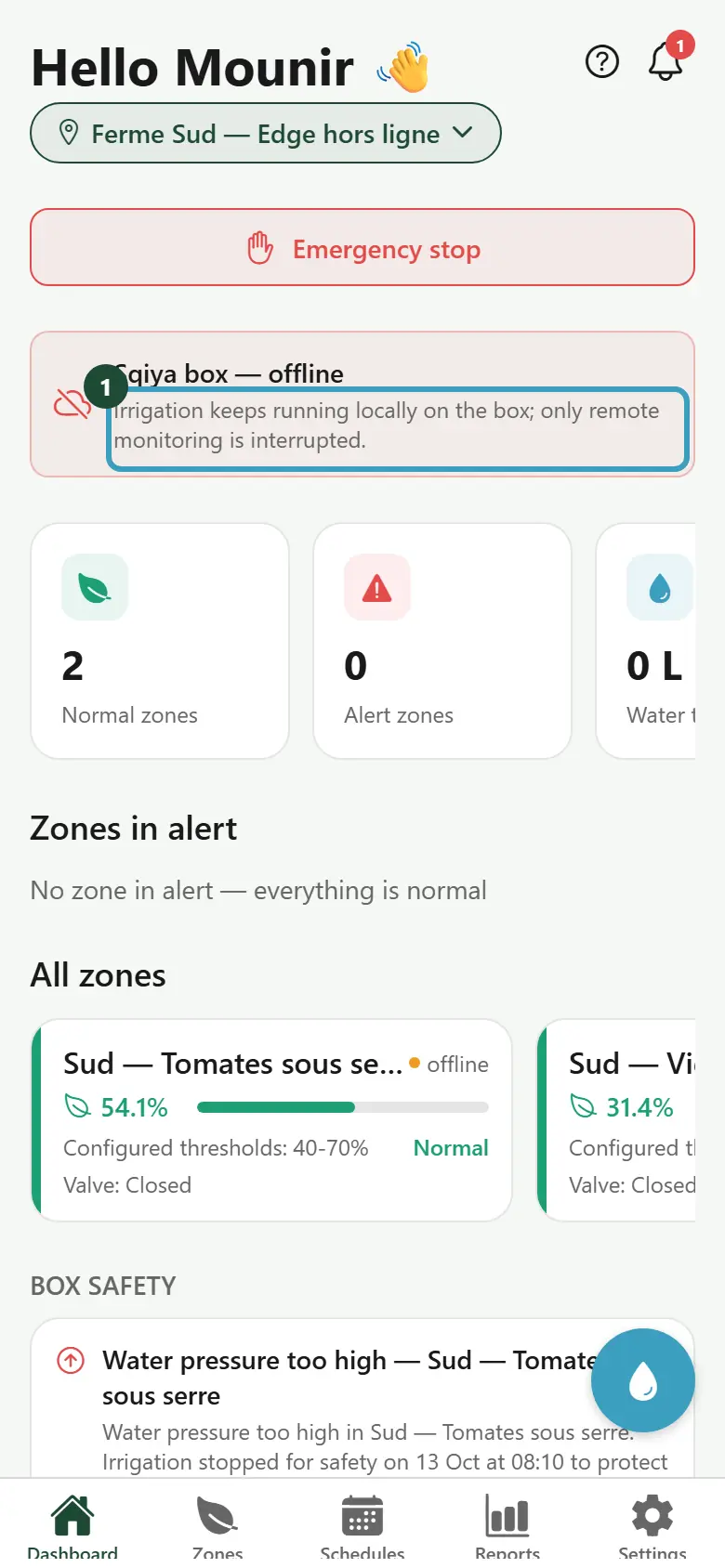
If the card shows offline, wait a few minutes after enrollment, then pull the screen down to refresh. If it stays offline, check the box's Internet connection (see Commissioning the Edge Box).
INFO
The Sqiya box card only appears if the farm has an enrolled Edge Box. If it does not appear at all, the enrollment did not succeed.
2. Readings arrive
- Go to Zones.
- For each zone equipped with a sensor, check the status at the top right of the card:
- online: the sensor is sending readings;
- offline: the sensor no longer responds;
- No sensor: no sensor is declared in this zone.
- Tap a zone to open its details.
- Check Last reading and the values shown: moisture, Temperature, Flow, Pressure depending on the sensors installed.
On the Dashboard, the Active sensors counter must match the number of sensors installed.
TIP
A reading appears in the app a few seconds after the sensor sends it. A sensor does not send continuously: wait for its next sending. If No reading stays displayed, check the sensor's power supply and its DevEUI.
3. The valve responds
Do this test with the farmer's agreement: it really turns on the zone's water.
- In the zone details, choose a short Duration.
- Tap Open irrigation, then confirm.
- On a farm with an Edge Box, follow the progress under the button: Sent…, then Received by the box…, then Executed.
- Check in the field that water is flowing in the right zone.
- Tap Close irrigation, then confirm. Check that the water stops.
- In Recent history, check that the opening and the closing appear.
If the command does not succeed, the app shows the reason:
| Message | What to check |
|---|---|
| Rejected — insufficient pressure or no flow detected | the pump, the manual valve upstream, the pressure and flow sensors |
| Rejected — valve offline | the power supply and the radio link of the valve |
| Rejected — emergency stop active | an emergency stop is in progress on the farm |
| Expired — not executed | the box received the order too late (Internet outage): it never carries it out, send the command again |
| Send failed | the valve did not confirm the order in time (5 minutes in LoRa) |
| No response from the box | the box did not respond: check that it is online |
Delays to know
| Situation | Delay |
|---|---|
| Box heartbeat signal | every 5 minutes |
| Box shown as offline | after 15 minutes without a signal |
| Sensor shown as offline | after 30 minutes without a reading |
| Manual command not received by the box | expired after 2 minutes (default setting), never carried out afterwards |
| Configuration changed by the Sqiya team | taken into account by the box at its next heartbeat |
WARNING
An offline box keeps irrigating locally. It is not an irrigation failure: only remote monitoring is interrupted.
Final checklist
Before leaving the farm, check each point:
- [ ] The Edge Box is enrolled and the Dashboard shows Sqiya box — online.
- [ ] No item(s) waiting to be sent message remains displayed.
- [ ] Each equipped zone shows online, and no equipped zone shows No sensor.
- [ ] The Active sensors counter matches the number of sensors installed.
- [ ] Each zone shows a recent Last reading and plausible values.
- [ ] Each valve opens and closes from the app, and water flows in the right zone.
- [ ] The Recent history of each tested zone shows the opening and the closing.
- [ ] No valve was left open after the tests.
- [ ] The activation code and the MQTT credentials were not left on site (paper, message).
- [ ] The farmer knows where to see the box status and its alerts: see Dashboard and Notifications.
To be completed by the Sqiya team
The handover report or end-of-installation sheet to give to the farmer or the Sqiya team is not defined yet.