

Several farms
If your account has several farms, a farm selector appears at the top of the screens. It decides which farm's zones, schedules, reports and alerts the app shows.
Only one farm
With only one farm, there is no selector: the name of the farm simply appears under Hello on the dashboard.
Choose the farm shown
The selector is at the top of the Dashboard, Zones, Schedules and Reports tabs. It shows the name of the current farm, for example "Ferme Nord — Edge en ligne", followed by a small arrow.
- Tap the name of the farm.
- The Choose a farm window opens.
- Tap the farm you want. A tick shows the farm displayed.
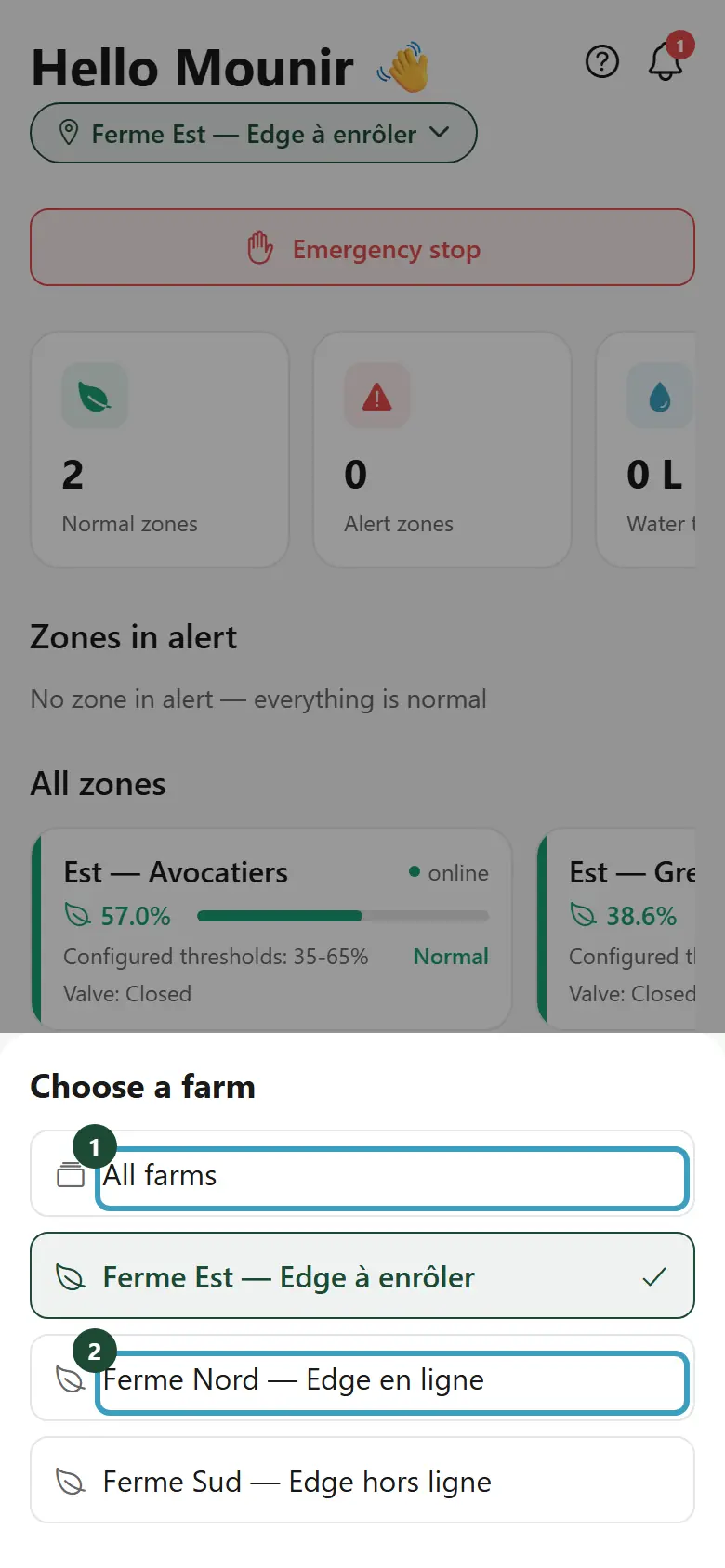
The choice applies to all the tabs and the app remembers it for next time. The first time you open the app, it shows the first farm in alphabetical order.
The All farms view
With the Kbir plan (multi-farm features), the window also offers All farms at the top of the list.
In this view:
- the dashboard adds up the counters of all the farms;
- each zone is named with its farm, for example "Nord — Orangers · Ferme Nord — Edge en ligne";
- an Emergency stop — Farm name button appears for each farm: an emergency stop only ever targets one farm;
- the notifications of all the farms are brought together.
Creating a schedule
A schedule is created in a specific zone. To avoid mistakes, first choose the farm concerned, then create the schedule.
What each member sees
A member only sees the farms their role gives them access to. If they only have access to one farm, they have no selector. To limit a member to certain farms, see Team.
Adding a farm
The app does not let you create a farm or a zone. A farm is added with the Sqiya team, within the limit of your plan.