

Zone details
This screen shows everything about a zone: its moisture, its readings, the Sqiya analysis recommendation and the history of its valve. This is also where you open or close irrigation.
To open it, tap a zone on the dashboard or in the zone list. The zone name appears at the top of the screen.
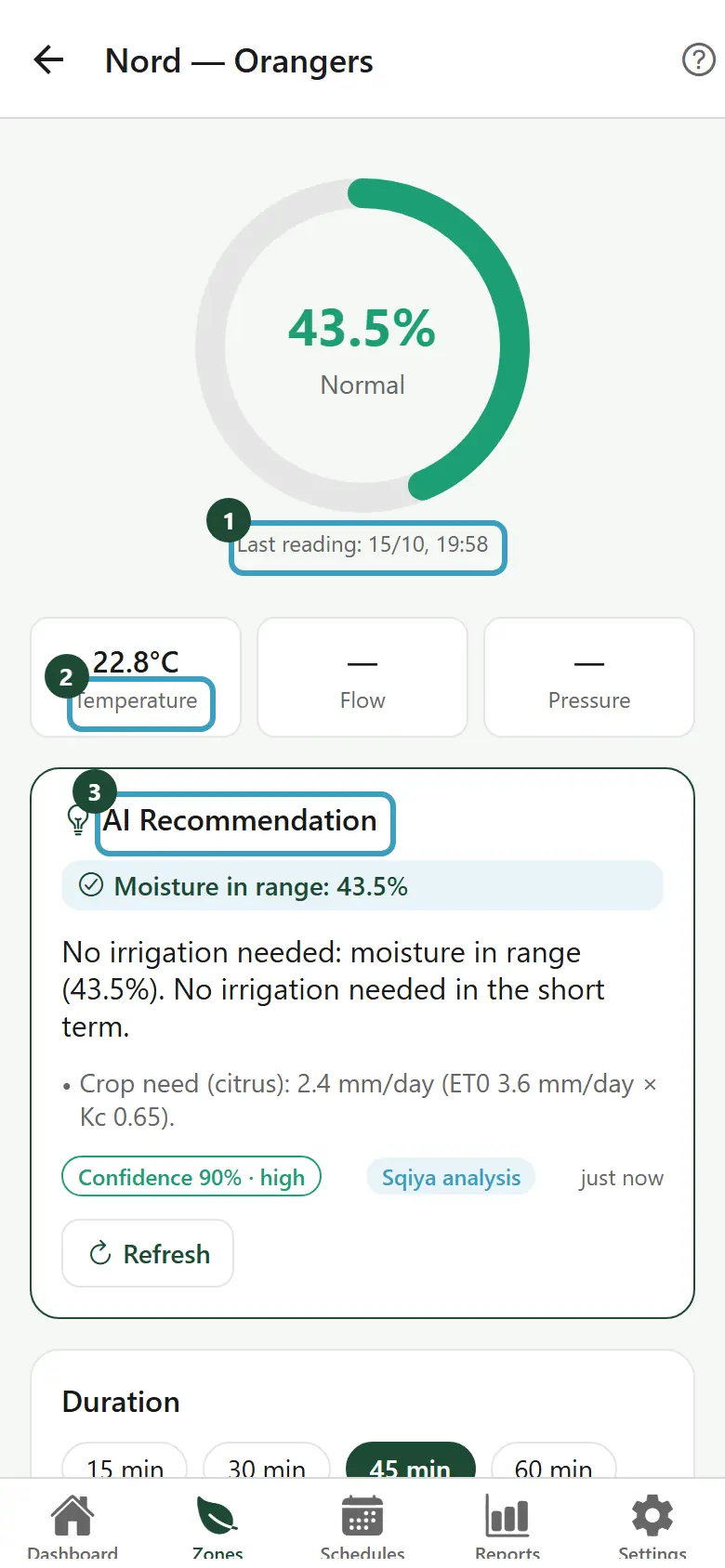
Soil moisture
The large round gauge shows the soil moisture as a percentage and its status: Normal, Low, Critical or High.
Under the gauge, Last reading shows the date and time of the last value received. If no value has been received yet, the app shows No reading.
Other readings
Three boxes show the Temperature (°C), the Flow (L/h) and the Pressure (bar). A dash "—" means the zone has no sensor for this reading.
The AI recommendation
The AI Recommendation card gives watering advice for the zone, calculated from the readings, the weather and the crop.
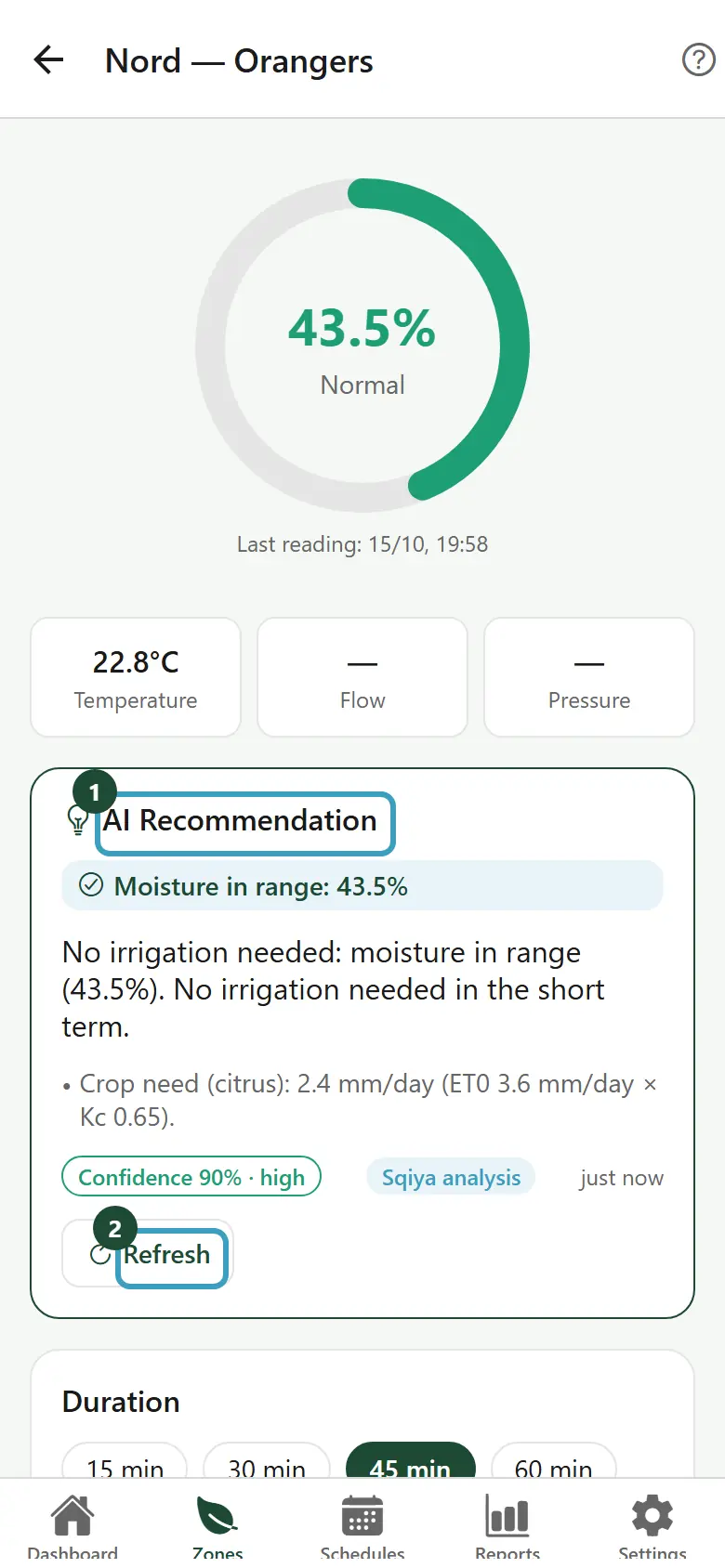
The card contains:
- the main reason, for example rain in the forecast;
- an explanation and, sometimes, advice as a list;
- the Confidence level, as a percentage, high, medium or low depending on the quality of the readings available;
- the source of the analysis (for example Sqiya analysis) and its time.
A reason shown in red (probable leak, readings too old) needs your attention.
Update the recommendation
- Tap Refresh.
- During the calculation, the app shows Analyzing....
Apply the recommendation
When the analysis advises watering, the Apply recommendation button appears.
- Tap Apply recommendation.
- The Open irrigation? window shows the zone and the advised duration.
- Tap Confirm, or Cancel.
- The message Irrigation started appears.
Depending on your plan
The recommendation is part of the Daki and Kbir plans. If your plan does not include it, the card does not appear. If it cannot be calculated, the card shows Recommendation unavailable.
Open or close irrigation
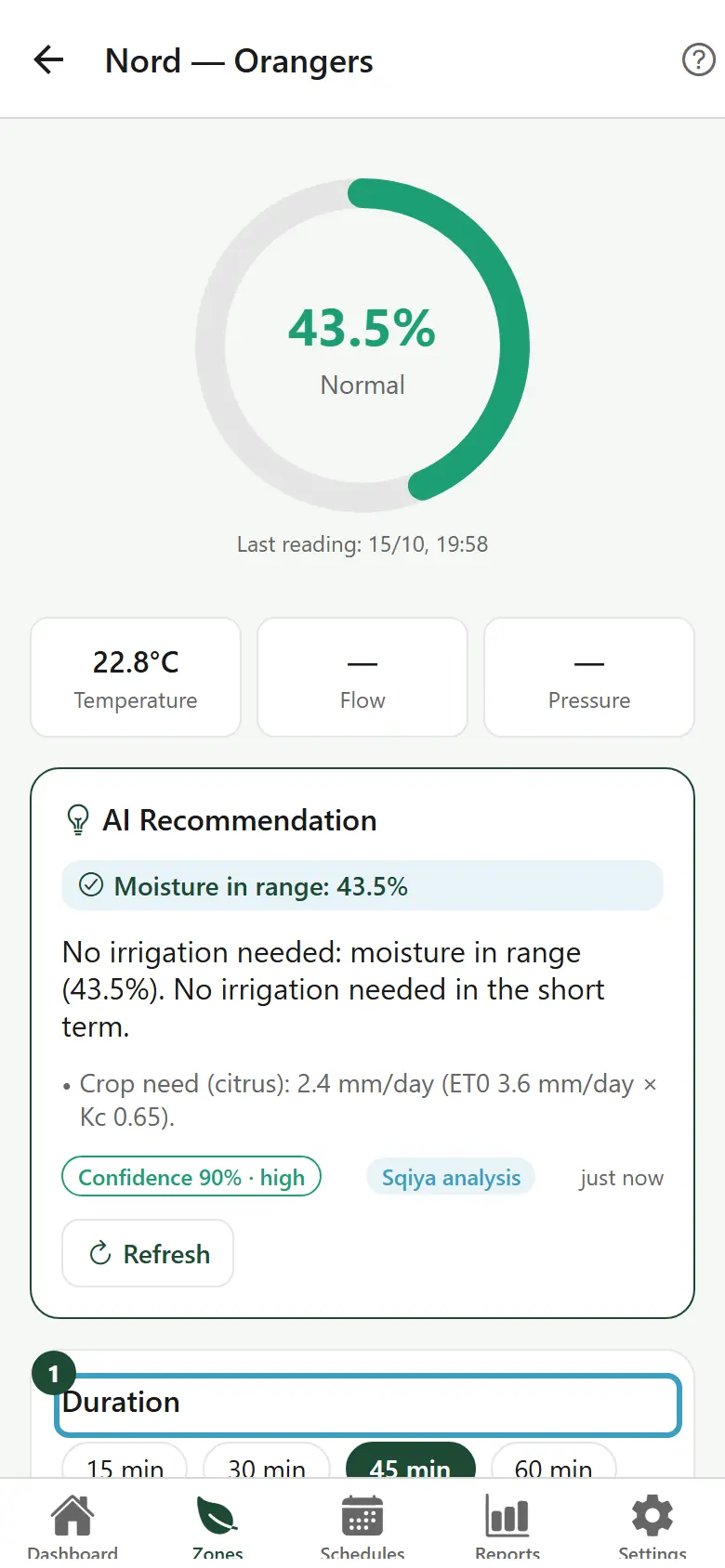
Open
- Under Duration, choose 15, 30, 45, 60 or 90 min. The default duration is 45 min.
- Tap the green Open irrigation button.
- The Open irrigation? window reminds you of the zone and the duration.
- Tap Confirm, or Cancel.
The chosen duration is sent with the opening command: irrigation is planned for that length of time. You can close it earlier at any time.
Valve disabled
If the Sqiya team disabled the zone's valve, the button is replaced by the message Valve disabled: it cannot be controlled. Contact the Sqiya team to enable it again.
Close
- When the valve is open, the button turns red: Close irrigation.
- Tap Close irrigation.
- In the Close irrigation? window, tap Confirm.
Follow the command
If your farm has a Sqiya box, the progress is shown under the button:
| Message | Meaning |
|---|---|
| Sent… | The request has been sent. |
| Received by the box… | The box received the request. |
| Executed | The valve did change state. |
| Rejected | The box refused, for safety. The reason follows: for example insufficient pressure, no flow detected, rain in progress or emergency stop active. |
| Expired — not executed | The request was not carried out in time. |
| No response from the box | The box did not respond. |
| Send failed | The request could not be sent. |
While a command is in progress, the button stays greyed out.
Depending on your role
The duration choice and the valve button only appear if your role allows you to control the valves. Otherwise, you see the zone but cannot act on it.
Configured thresholds
The Configured thresholds card shows the planned moisture range for the zone, for example "Min: 30% | Max: 60%". Below the minimum or above the maximum, the zone moves into Zones in alert on the dashboard.
Recent history
The Recent history card shows the last 5 openings and closings of the valve, with who or what triggered them. For example:
- Opened by you or Closed by followed by the name of a team member;
- Opened by the “Morning watering” schedule;
- Opened automatically (dry soil);
- Closed by the safety system (possible leak);
- Closed by the emergency stop;
- Opened on Sqiya analysis advice.
If there is nothing yet, the app shows No recent event.