

Settings
The Settings tab brings together your account, your subscription, your notifications, security and the app language.
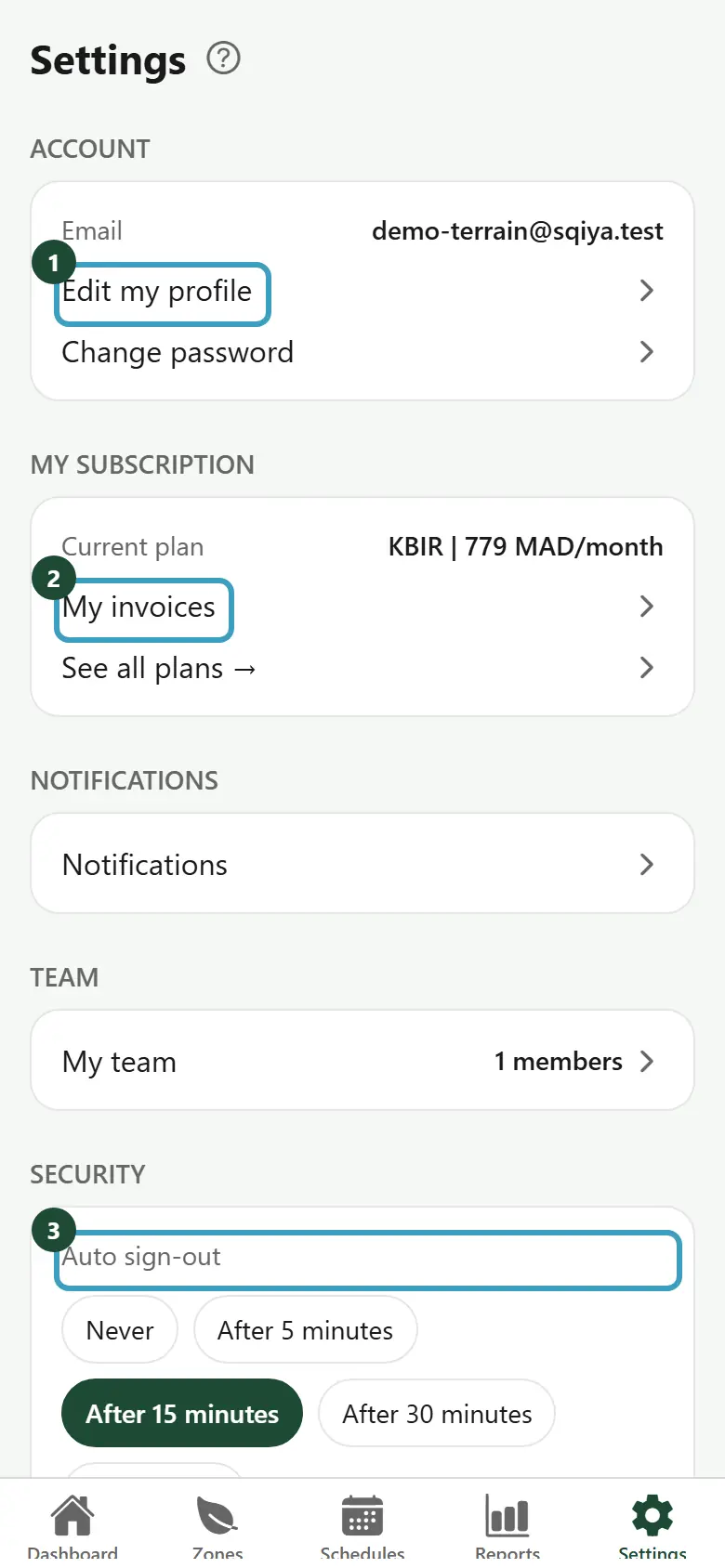
Account
The Account section shows your Email.
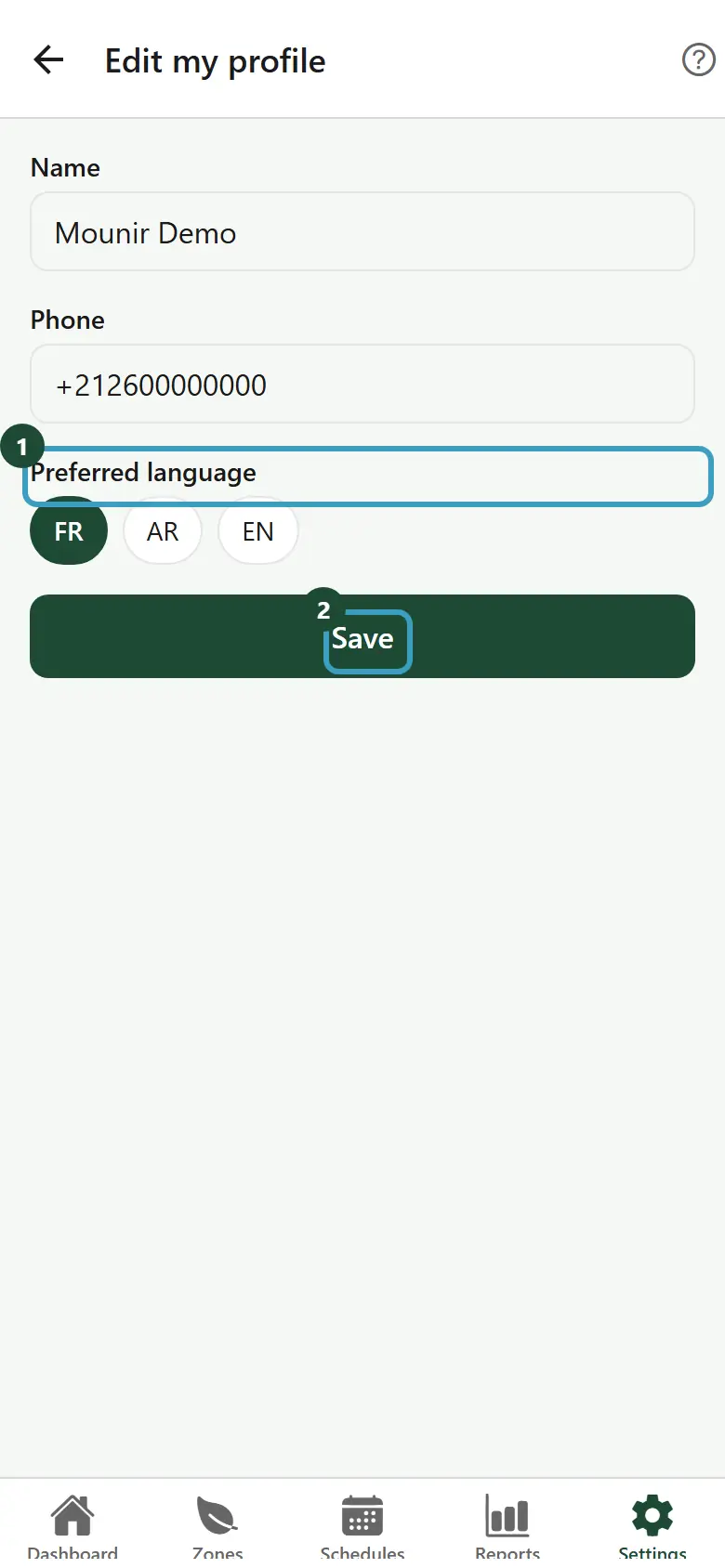
Edit your profile
- Tap Edit my profile.
- Change your Name or your Phone.
- Under Preferred language, choose FR, AR or EN: this is the language saved in your account.
- Tap Save.
- The message Saved appears.
Change your password
- Tap Change password.
- Enter your Current password.
- Enter your New password: at least 10 characters, including a letter and a digit.
- Enter it a second time in Confirm new password.
- Tap Save.
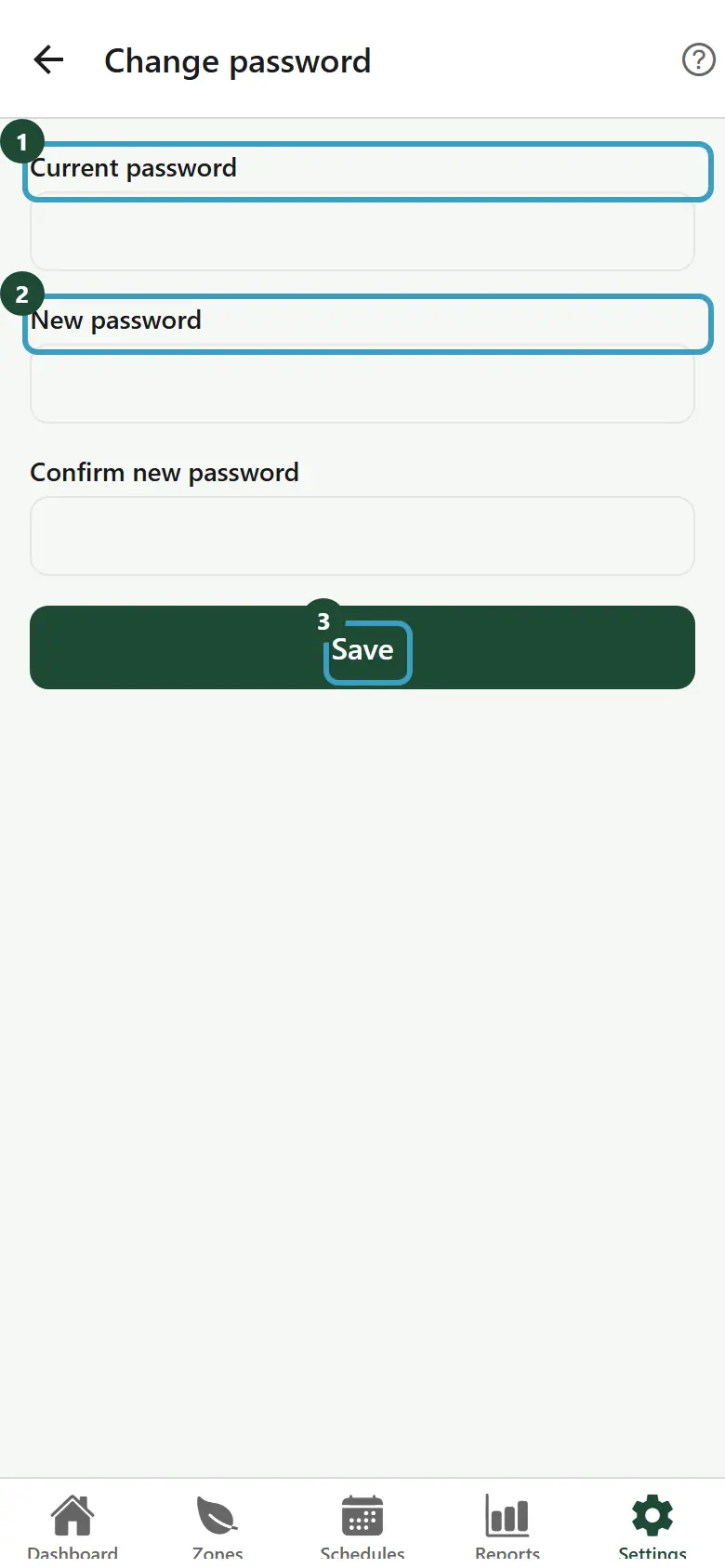
You stay signed in on this phone. Your other devices are signed out.
| Message | Meaning |
|---|---|
| Current password is incorrect | The current password you entered is wrong. |
| At least 10 characters, including a letter and a digit | The new password is too simple. |
| The new password must differ from the current one | Choose a different password. |
| Passwords do not match | The two entries of the new password are different. |
My subscription
- Current plan: the name of your plan and its monthly amount.
- My invoices: see My invoices.
- See all plans →: compare the Asasi, Daki and Kbir plans (see Plans).
Notifications
Tap Notifications to choose the alerts you receive and their channel. See Notifications.
Team
If you are in charge of the account and your plan includes the team, a Team section shows My team and the number of members. See Team.
Security
Automatic sign-out
The app signs you out after a period of inactivity. Under Auto sign-out, choose:
- Never;
- After 5 minutes;
- After 15 minutes (default choice);
- After 30 minutes;
- After 1 hour.
WARNING
With Never, anyone who picks up your phone can control your valves. Choose a short delay if you share your phone.
Face ID or fingerprint
If your phone supports it, a Face ID line (or Touch ID / Fingerprint) appears, with the text Unlock the app with your biometrics.
- Turn on the switch.
- The phone asks you to confirm with your face or your fingerprint (Confirm to enable).
- The message Saved appears.
After an automatic sign-out, you can reopen the app without a password. See Sign in with Face ID or fingerprint.
Application
Under Language, tap FR (French), AR (Arabic) or EN (English). The app changes language right away. In Arabic, the display switches to right to left.
TIP
You can also change the language on the sign-in screen, before you sign in.
Sign out
- Tap the Sign out button, at the bottom of the screen.
- The window asks: Do you really want to sign out?
- Tap Confirm, or Cancel.
After signing out yourself, you need to sign in again with your email and password.
App version
At the very bottom of the Settings screen, the Version line shows the version number of the app installed on your phone, for example "Version 1.0.0". Give this number to the Sqiya team if you report a problem.
What's new
After each app update, a "What's new" screen presents the new features. It is shown only once per update: close it to go back to the app.