

Install the app and sign in
This page explains how to open the Sqiya app for the first time, sign in and get access back if you forgot your password.
Install the app
The app works on iPhone and Android. The Sqiya team tells you how to install it on your phone when your farm is commissioned.
Your account is created for you: by the Sqiya team, or by the person in charge of your farm if they invite you to their team. You receive your sign-in email and a password.
The welcome screens
The very first time you open the app, three screens introduce it: Welcome to Sqiya, Smart irrigation and Real-time data.
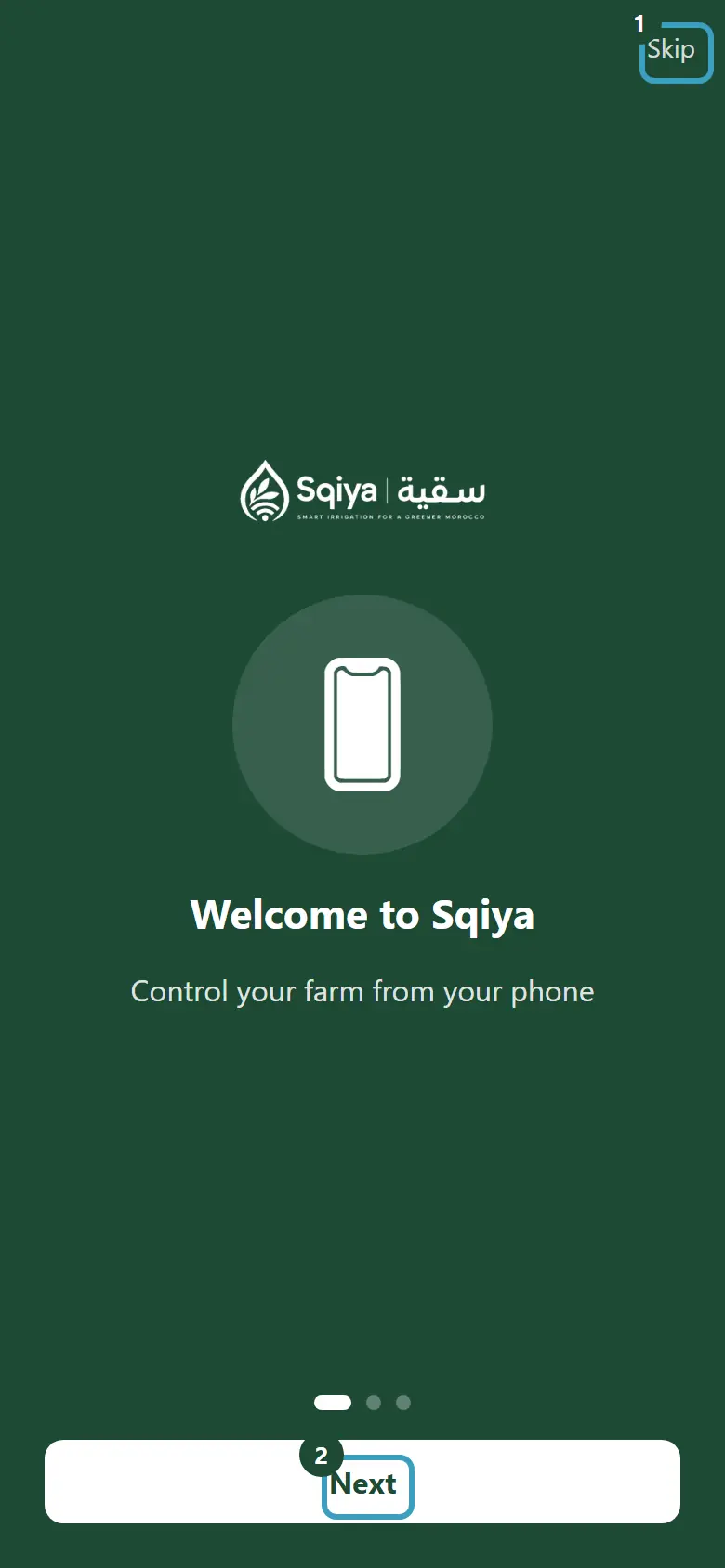
- Tap Next to go to the next screen.
- On the last screen, tap Get started.
You can also tap Skip, at the top right, at any time. These screens are shown only once.
Sign in
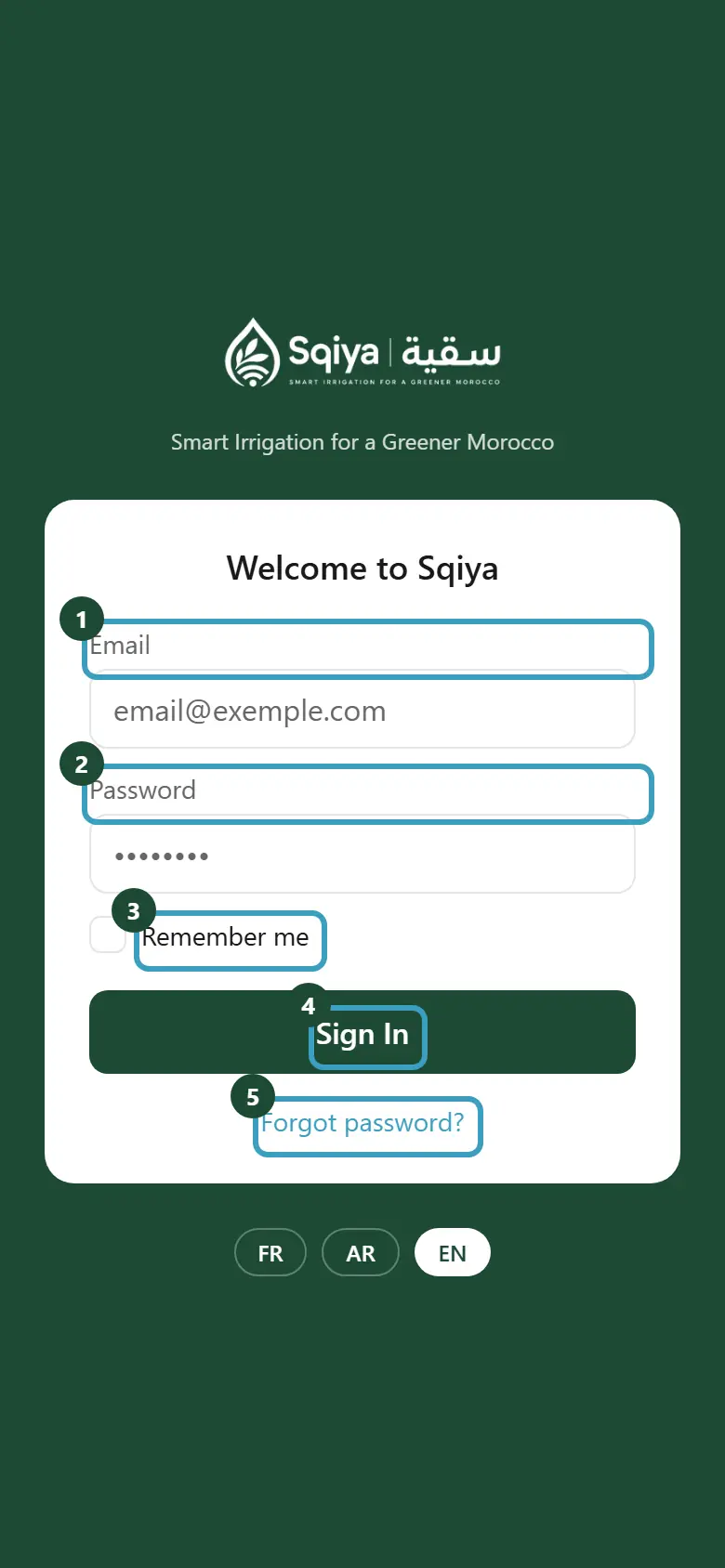
- If needed, choose the language at the bottom of the screen: FR, AR or EN.
- Enter your address in the Email field.
- Enter your Password.
- Tick Remember me if you want the app to remember your email next time.
- Tap Sign In.
If sign-in fails
| Message | What to do |
|---|---|
| Incorrect email or password | Check the email and password, or use Forgot password?. |
| Could not reach the server — check your connection | Check that your phone has network, then try again. |
| Account suspended — contact your administrator | Your personal access was suspended. Contact the person in charge of your farm. |
| No role assigned — contact your administrator | Your account exists but has no role yet. Contact the person in charge of your farm. |
Farm account awaiting payment or suspended
If your farm's subscription is not paid, you can sign in, but the app only shows My invoices. See My invoices.
Forgot password
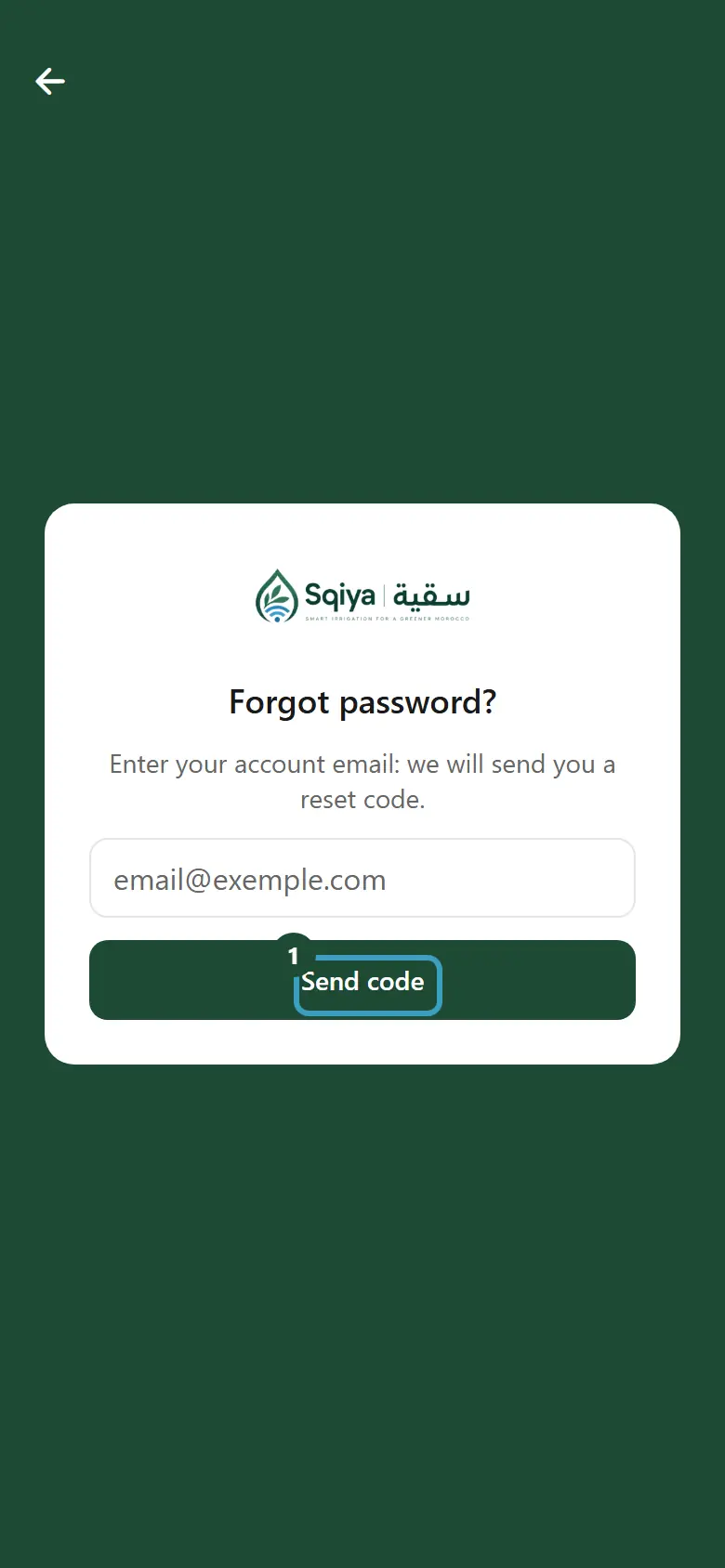
- On the sign-in screen, tap Forgot password?.
- Enter your account email.
- Tap Send code.
- Open your emails. If an account exists for this email, you receive a code. It is valid for 30 minutes.
- In the app, enter this code in the Code received by email field.
- Enter your New password.
- Enter it a second time in Confirm new password.
- Tap Reset password.
- The message Password reset — please sign in appears. Sign in with your new password.
Didn't receive the code? Tap Resend a code. Entered the wrong email? Tap the back arrow, at the top left, to correct it.
Password rules
At least 10 characters, including a letter and a digit. The new password must be different from the old one.
WARNING
A code can only be used once. If the message Invalid, expired or already used code — request a new one appears, request a new code. After several failed attempts, the app shows Too many attempts — wait a few minutes before trying again.
Choose your password the first time you sign in
If your account was created with a temporary password, the app first asks you to choose one. The screen is called Choose your password. The rest of the app stays locked until this is done.
- In Temporary password, enter the password you were given.
- Enter your New password.
- Enter it a second time in Confirm new password.
- Tap Confirm.
- The message Password saved appears and the app opens.
You can tap Log out to leave this screen without changing anything.
Sign in with Face ID or fingerprint
You can reopen the app without typing your password again, with Face ID or your fingerprint.
- First turn on the option in Settings, in the Security section. See Settings.
- When the app signs you out after a period of inactivity, the sign-in screen shows Hello followed by your first name and the Sign in with Face ID button (or Sign in with Touch ID).
- Tap this button and let your phone recognize you.
You can always sign in with your email and password, below the word or.
INFO
The biometric button does not appear after you choose Sign out yourself in Settings: you then need to sign in again with your password. If the message Session expired — please sign in again appears, do the same.
Automatic sign-out
To protect your account, the app signs you out after a period of inactivity (15 minutes by default). The message Your session has expired. Please sign in again. appears. You can change this delay in Settings.