

The zone list
The Zones tab shows all the zones of the selected farm, with their moisture and the state of their valve. It is the starting point to open the details of a zone.
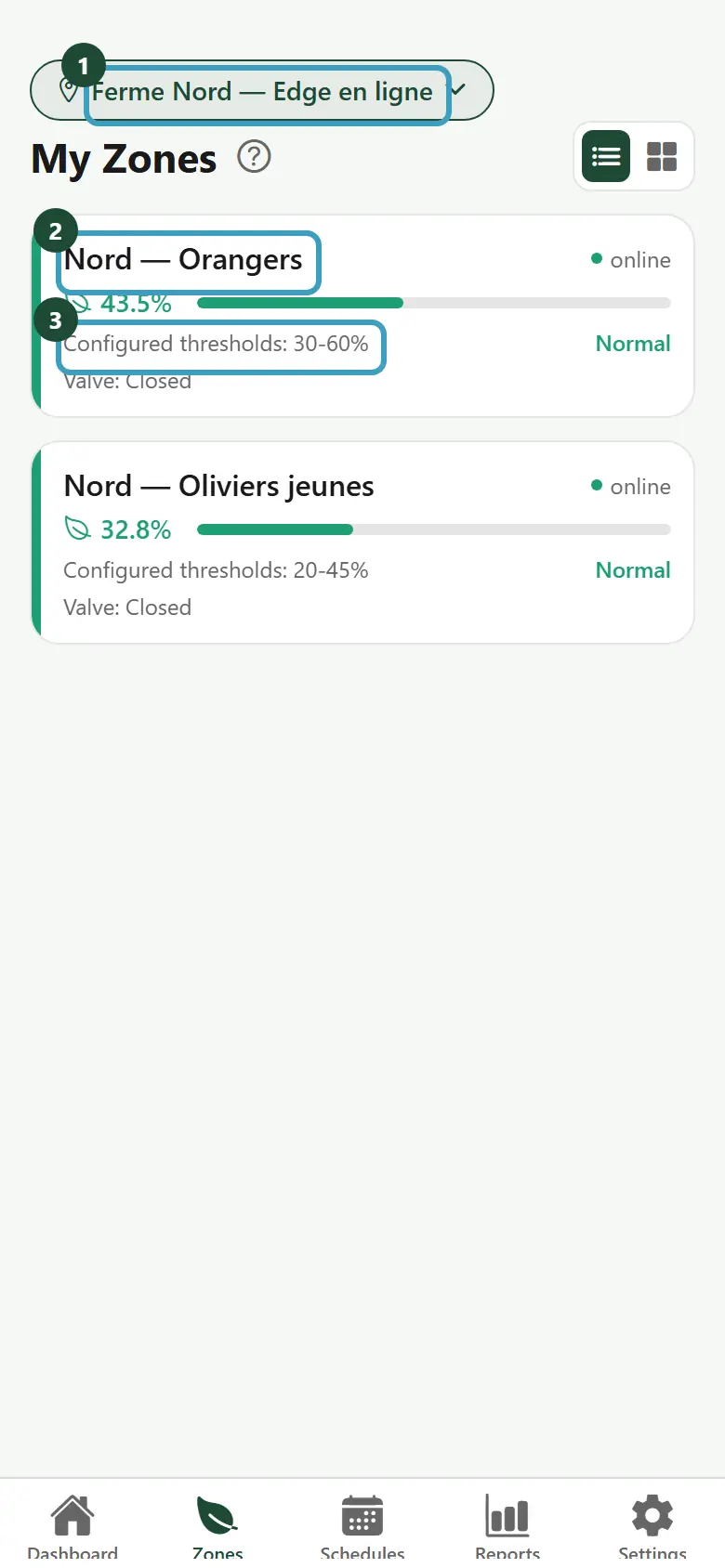
Open the list
- Tap the Zones tab, at the bottom of the screen.
- The My Zones screen appears.
- If you have several farms, choose the farm at the top of the screen (see Several farms).
Read a zone card
Each card shows:
- the zone name (for example "Nord — Orangers");
- the state of the sensors, on the right: online, offline, disabled or No sensor;
- the soil moisture as a percentage, with a colored bar;
- Configured thresholds: the planned moisture range for this zone, for example 30-60%;
- the moisture status: Normal, Low, Critical or High;
- the valve state: Valve: Open or Valve: Closed.
The color helps you spot the zones to watch:
| Color | Status |
|---|---|
| Green | Normal |
| Orange | Low |
| Red | Critical |
| Blue | High (very wet soil) |
INFO
offline means the zone's sensors no longer respond. disabled means the Sqiya team turned off the sensors on purpose: it is not a fault. No sensor simply means the zone has no sensor: it is not a fault either.
Change the display
At the top right, two buttons let you choose the display:
- Tap the list icon to see a detailed card per zone.
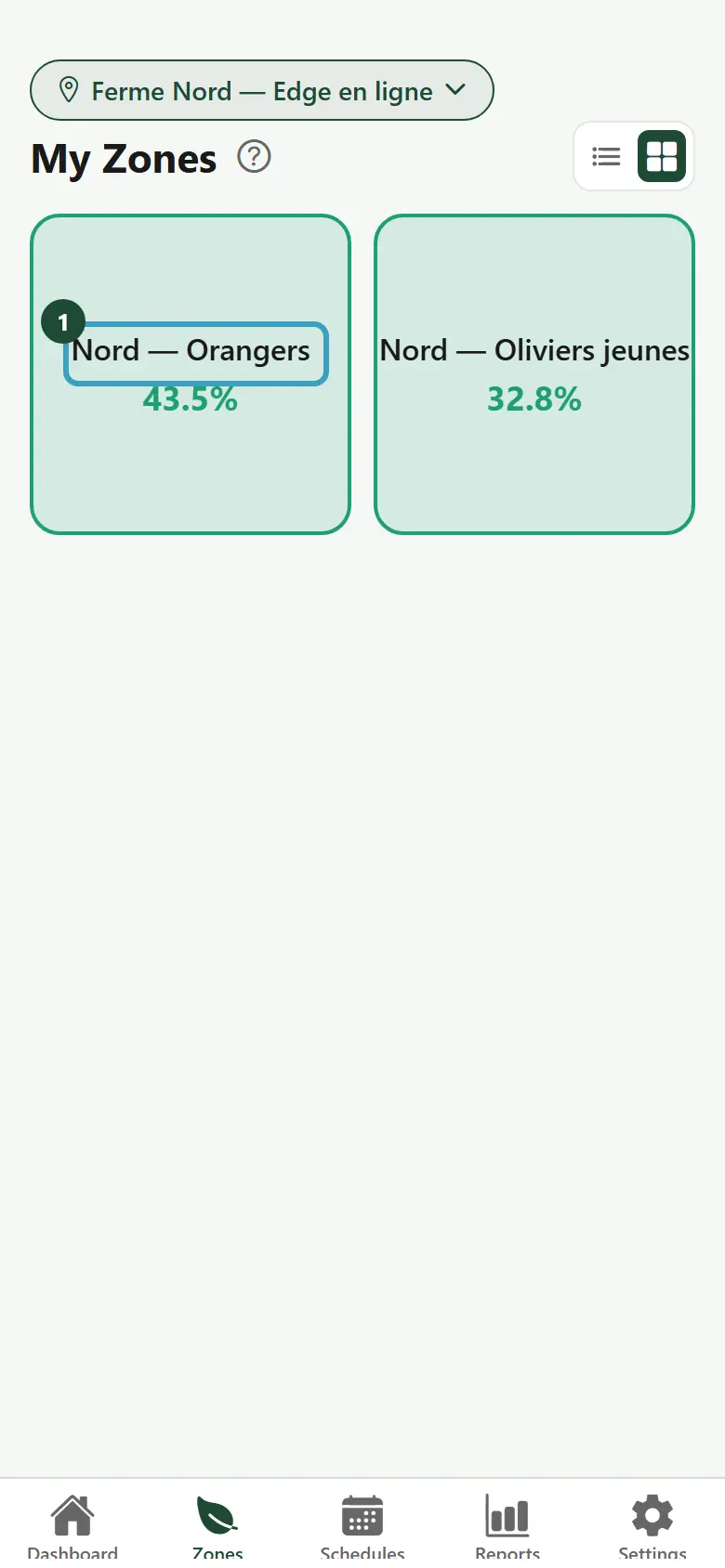
- Tap the grid icon to see the zones as small colored boxes, two per row, with the name and the moisture.
Refresh
Pull the list down to reload the latest readings. The values also update on their own when new readings arrive.
Open a zone
Tap a card (or a box) to open the zone details.