

The team
The Team screen lists the people who have access to your farm's account. You can invite a new member there and give them a role.
Depending on your plan and your role
Team management is part of the Daki plan (with a limited number of members) and the Kbir plan. If your plan or your role does not include it, the Team section does not appear in Settings.
Open the team
- Tap the Settings tab.
- In the Team section, tap My team. The number of members is shown on the right, for example "2/5 members".
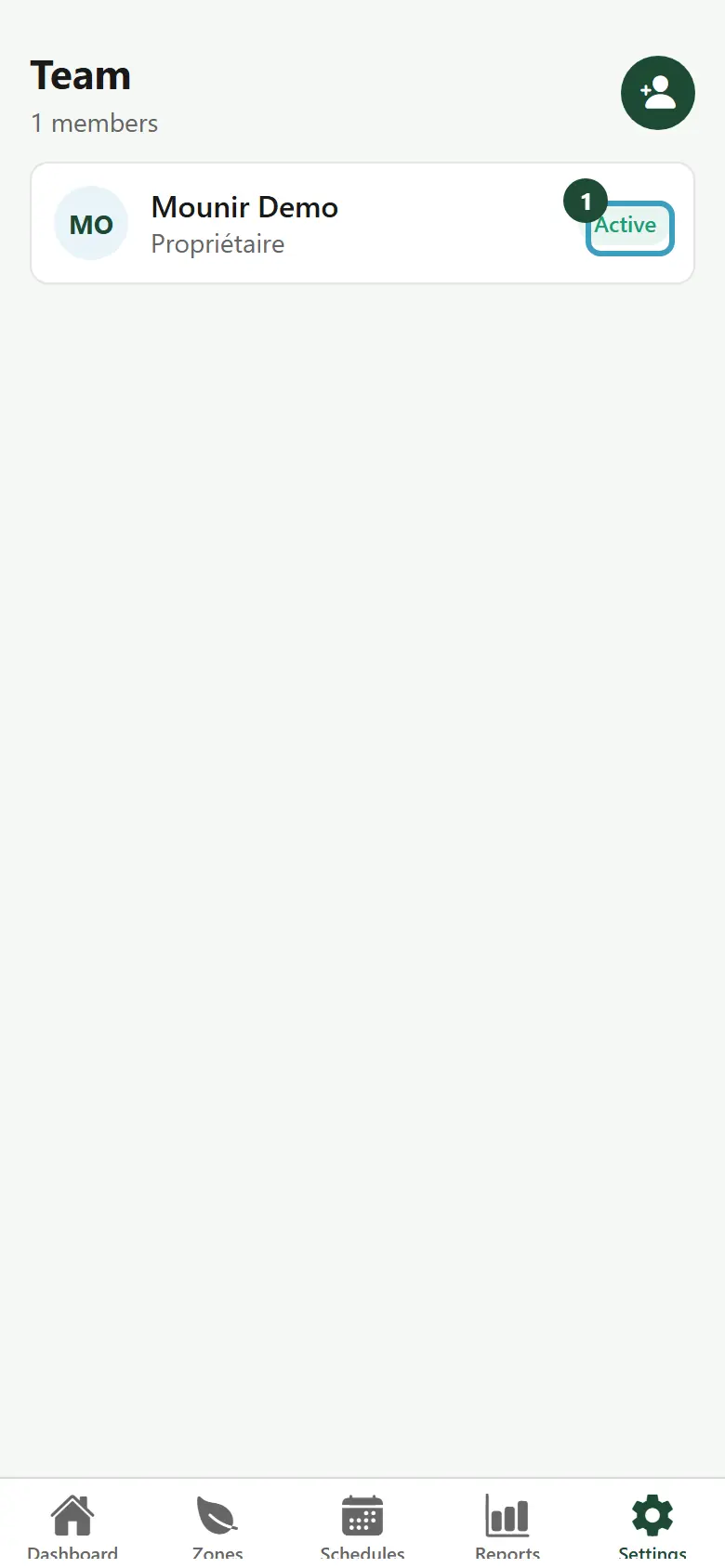
Under the Team title, the app shows the number of members and your plan's limit. Each member appears with their name, their role and their status: Active or Suspended.
Pull the list down to refresh it. If there is nobody, the app shows No members yet.
Invite a member
- Tap the add-person button, at the top right.
- The Invite a member screen opens.
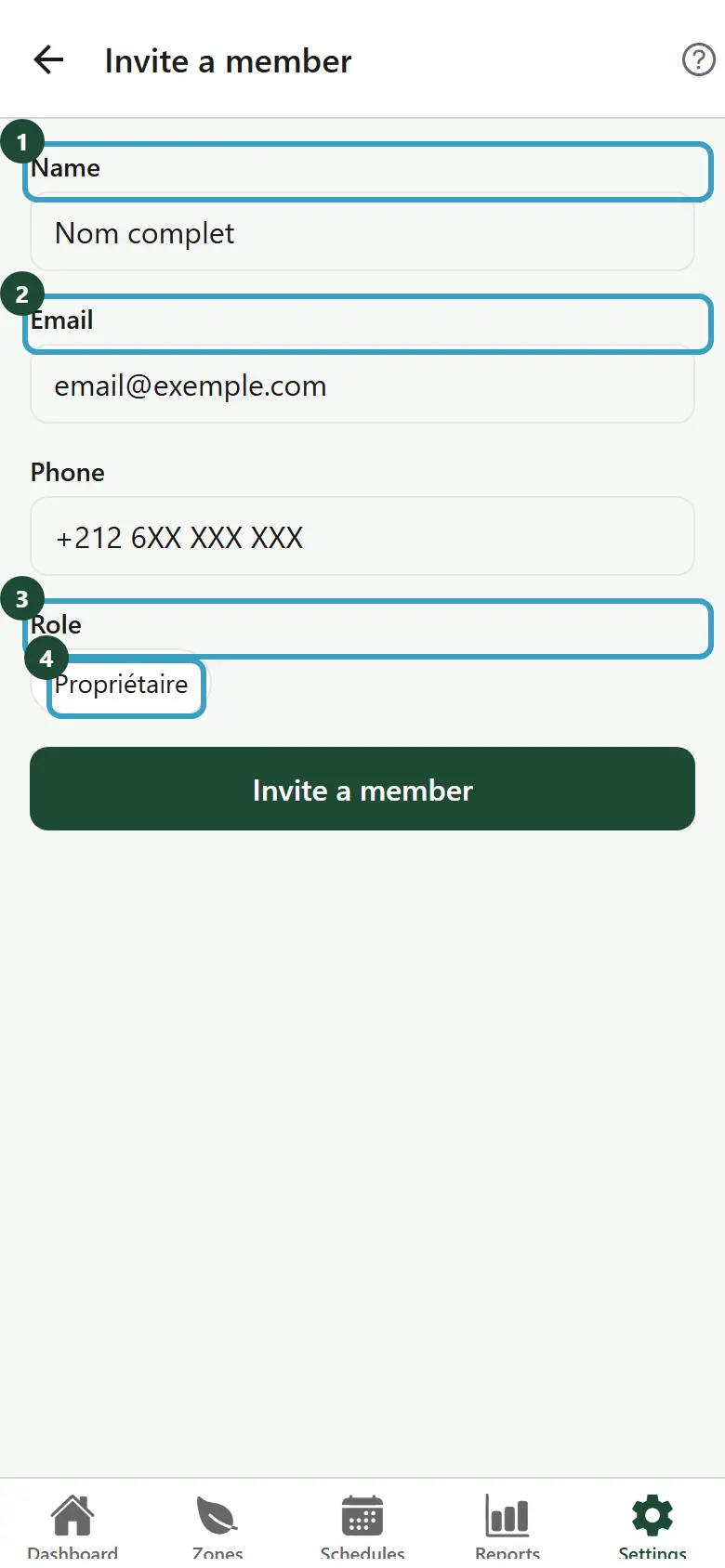
- Enter their Name (at least 2 characters).
- Enter their Email.
- Enter their Phone (optional).
- Under Role, choose the role to give them.
- Tap Invite a member.
The Invitation created screen confirms that the account has been created. Tap Confirm to go back to the team.
Share the access
The app does not yet send the sign-in details to the new member automatically. Share the access with them through your usual channel. The first time they sign in, they will have to choose their own password (see Sign in).
| Message | What to do |
|---|---|
| Name must be at least 2 characters | Complete the name. |
| Invalid email | Check the email address. |
| Choose a role | Tap one of the roles offered. |
The member limit
Your plan may limit the number of members. When the limit is reached, the add button is faded. If you tap it, the app shows … user limit reached and offers See all plans → to move to a higher plan.
Roles
A member's role decides what they see and what they can do in the app. For example:
- control the valves, trigger the emergency stop and quick irrigation, or only view the zones;
- create, edit or delete schedules, or only see them;
- see and pay the invoices;
- manage the team.
The Invite a member screen offers the roles already defined for your account. The app does not let you create a new role or change what a role allows: contact the Sqiya team.
Access by farm
A member can have access to all your farms or only to some of them. They then only see the farms, zones and notifications they are allowed to see.
INFO
This setting is not done from the mobile app: a member invited from the app has access to all the farms of the account. To limit a member to one farm, or to suspend or change a member, contact the Sqiya team.