

The dashboard
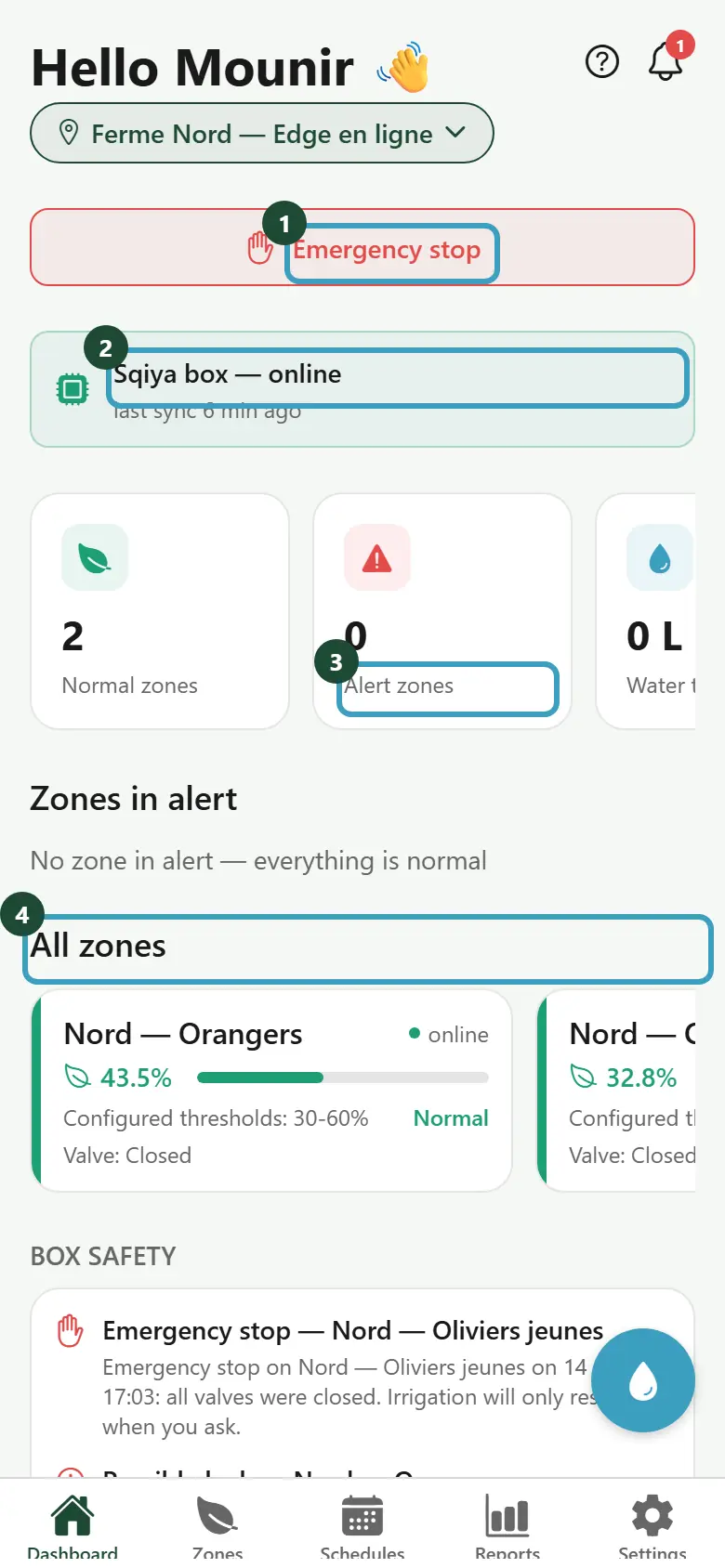
The dashboard is the first screen after you sign in. It sums up the state of your farm and lets you act fast: stop all the valves or start an irrigation.
What you see
From top to bottom:
- Hello followed by your first name, and the name of your farm. If you have several farms, a farm selector replaces this name (see Several farms).
- The bell, at the top right. A badge shows the number of unread notifications. Tap it to open the notifications.
- The Grace period banner, if an invoice is overdue (see below).
- The Emergency stop button (see below).
- The Sqiya box card, if your farm has one.
- Four counters, to scroll from left to right:
- Normal zones: zones whose moisture is within the planned range;
- Alert zones: zones that are too dry or too wet;
- Water today: the water used since midnight;
- Active sensors: sensors that respond, out of the total number (sensors disabled by the Sqiya team are not counted).
- Zones in alert: the list of zones outside their range. If all is well, the message No zone in alert — everything is normal appears.
- All zones: all your zones, to scroll from left to right. Tap a zone to open its details.
- Box safety: what the box did on its own to protect your installation (see below).
- Recent alerts: your last 5 notifications. Tap See all for the full list.
To refresh the screen, pull it down.
The Sqiya box card
It only appears if your farm has a Sqiya box.
- Sqiya box — online: the box is communicating. The line below shows synced just now or the time of the last sync.
- Sqiya box — offline: the box no longer communicates with Sqiya.
Box offline
Irrigation keeps running locally on the box; only remote monitoring is interrupted. Your schedules and your safety rules keep applying on site.
Stop all the valves (Emergency stop)
The Emergency stop button immediately closes all the valves of the farm displayed.
- Tap Emergency stop.
- Read the message: it names the farm concerned.
- Tap Emergency stop in the window to confirm, or Cancel.
- Follow the progress under the button: Sent…, then Received by the box…, then Executed.
WARNING
- Irrigation only starts again when you ask for it.
- If the message Partial emergency stop: some valves could not be closed — check each zone appears, open each zone to check its valve.
- If the message No Sqiya box on this farm — close valves zone by zone appears, close each valve from the zone details.
With the All farms view, an Emergency stop — Farm name button appears for each farm.
Irrigate a zone in alert
In Zones in alert, a zone whose valve is closed shows a small lightning bolt to the right of its moisture bar.
- Tap the lightning bolt.
- The Open irrigation? window shows the zone and a duration of 45 minutes.
- Tap Confirm, or Cancel.
Quick irrigation
The round blue button at the bottom right (water drop) opens Quick irrigation, without leaving the dashboard.
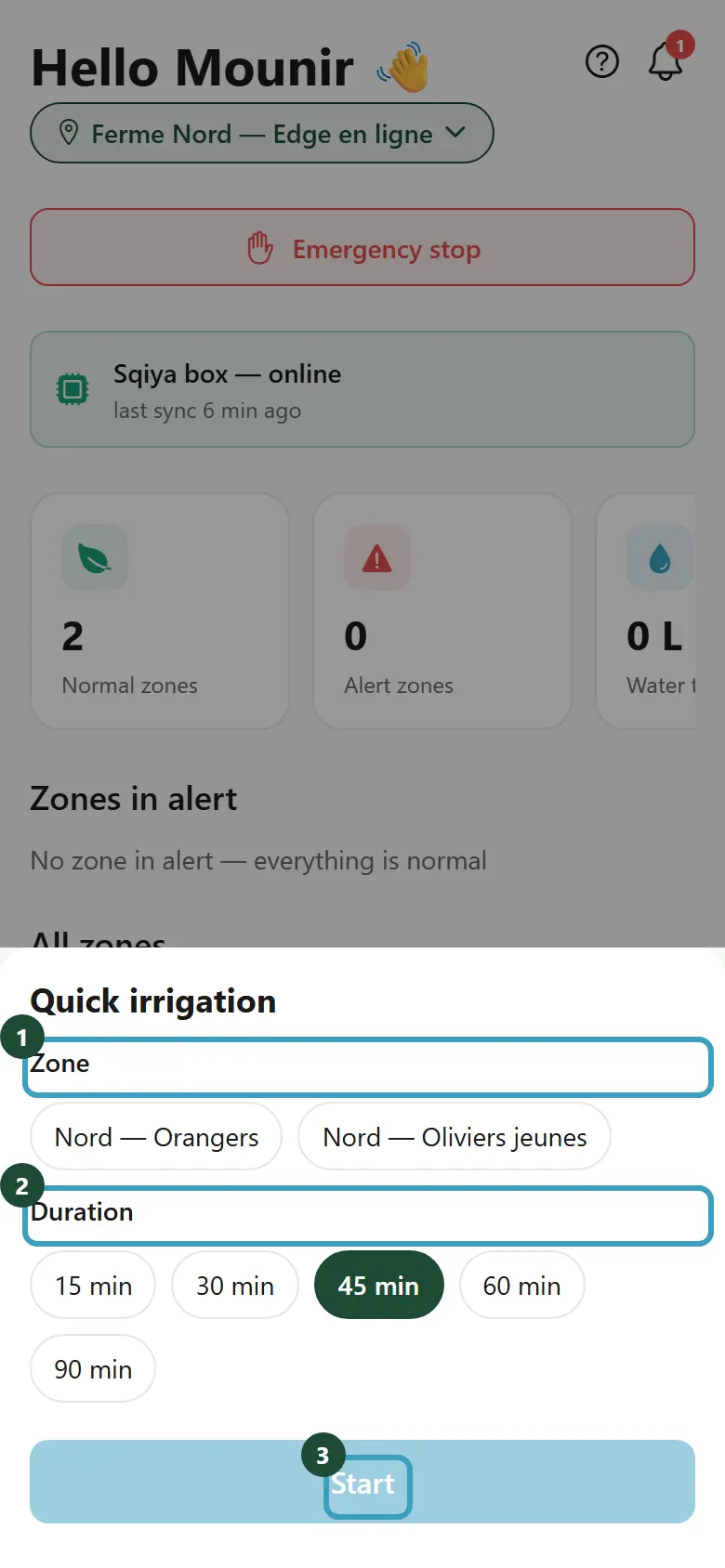
- Tap the water drop button.
- Under Zone, choose the zone to irrigate.
- Under Duration, choose 15, 30, 45, 60 or 90 min.
- Tap Start.
- The window shows Open irrigation? and reminds you of the zone and the duration, for example Zone Nord — duration: 45 minutes.
- Tap Confirm to open the valve, or Cancel to go back to the choice.
Nothing starts without confirmation
As with all valve commands, irrigation only starts after Confirm.
To close the window without starting anything, tap the dark area above it. A zone whose valve was disabled by the Sqiya team is not offered.
Depending on your role
The Emergency stop button, the lightning bolt and the quick irrigation button only appear if your role allows you to control the valves.
Grace period
If an invoice is not paid by its due date, an orange Grace period banner appears at the top of the dashboard. It shows the amount left and the date on which the account will be suspended without payment, for example: An invoice of 299.00 MAD is still to be paid. Without payment, your account will be suspended on 19/02/2026.
During the grace period, the app works normally. To make the banner go away, pay the invoice and declare your transfer (see Payment).
Box safety
This section lists the latest automatic actions of the box, with the time. For example:
- No water: the valve was open but no water was flowing. Irrigation was stopped for safety.
- Possible leak: more water was flowing than expected. Check the pipes and drippers.
- Water pressure too low or Water pressure too high: check the pump or the pressure regulator.
- Rain — watering cancelled: it has rained enough, no action is needed.
- Watering too long: the valve stayed open for more than 4 hours.
- Equipment offline: check the equipment's power supply (battery or cable).
- Emergency stop: all the valves were closed.
The section does not appear if there is nothing to report.